Applies To
LexWorkplace Starter, Core, Advanced
This article describes how to create, edit, and manage Matter Notes in LexWorkplace.
Introduction to Matter Notes
Matter Notes are one of the three types of data stored in a Matter, alongside Documents and Email. A Matter Note is a rich-text page where you can capture information about a matter (case strategy, call notes, research, deadlines) in the same place as the matter's documents and email.
Matter Notes are rich text. You can add headings, bold and italic text, bulleted and numbered lists, links, and code blocks, so a note can be as simple as a two-line call log or as structured as a full case-strategy memo.
Here are some common ways firms use Matter Notes:
Call logs: Document a call with a client, opposing counsel, or the court.
Intake notes: Capture key facts and parties when opening a new matter.
Case strategy and status: Keep a running summary of the theory of the case, key dates, and open tasks.
Legal research: Save research notes and links to authorities relevant to the matter.
Meeting notes: Record decisions and action items from internal or client meetings.
Why keep notes in LexWorkplace?
Notes saved to a Matter live alongside that matter's documents and email, are visible to everyone with access to the matter, and are included in search. You don't need a separate note-taking app that is disconnected from the rest of your matter.
Creating a Matter Note
Open a Matter.
Click the Notes tab, and click Create Note
Give the note a title, then start typing in the note body.
Note Folders
Like Documents and Email, the Notes tab supports folders and subfolders. If a matter accumulates many notes, organize them into folders (for example, Call Logs and Research).
The Matter Note Page
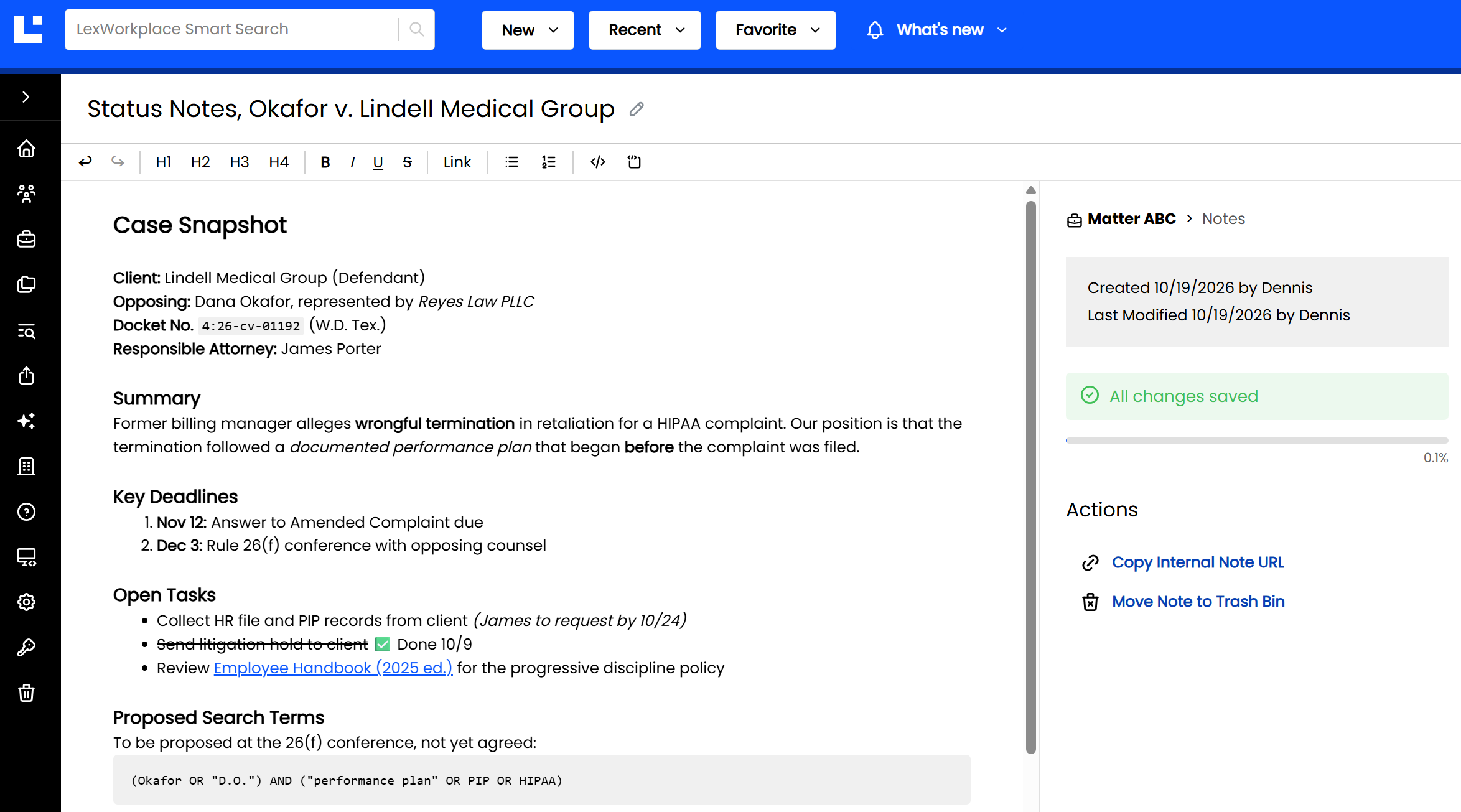
When you open a Matter Note, it fills the full page, giving you plenty of room to read and write. The page has three main areas.
Area | Description |
|---|---|
Title & Toolbar | The note's title appears at the top of the page, with the formatting toolbar directly below it. The toolbar stays in place as you scroll, so formatting options are always within reach. |
Note Body | The main writing area. It spans the full height of the page and scrolls when a note is longer than the screen. |
Sidebar | The right-hand sidebar shows which Matter the note belongs to, who created and last modified it, its save status, how much of the note's storage limit is in use, and available Actions. |
Renaming a Note
Hover over the note's title at the top of the page. A pencil icon appears.
Click the pencil icon. The title becomes editable.
Type the new title, then press Enter
Formatting a Note
Use the toolbar at the top of the note to format your content. Select the text you want to format, then click the toolbar button, or click a button first and then start typing.
Toolbar Button | What It Does |
|---|---|
Undo / Redo | Undo or redo your most recent changes |
H1, H2, H3, H4 | Apply headings, from largest (H1) to smallest (H4), to organize longer notes into sections |
B | Bold |
I | Italic |
U | Underline |
S | Strikethrough. Useful for marking tasks as completed without deleting them |
Link | Add a hyperlink to selected text |
Bulleted List | Start a bulleted list |
Numbered List | Start a numbered list |
Code Block | Insert a code (plain text) block [confirm: this is the last toolbar icon] |
When to Use a Code Block
Code blocks aren't just for code. Use them for any text that must stay exactly as written, such as eDiscovery search terms, docket numbers, Bates ranges, or account references. Code blocks display text in a fixed-width font and set it apart visually, so it's easy to spot and copy accurately.
Saving Your Work
Matter Notes save automatically as you type. There is no Save button.
The save status appears in the right-hand sidebar:
Status | Meaning |
|---|---|
No changes made | You've opened the note but haven't edited it yet |
Changes pending | You're typing, and your changes are being saved |
All changes saved | All of your edits have been saved to LexWorkplace |
When you're done, simply navigate away from the note (once you see “All changes saved”).
Note Details & Storage Used
The right-hand sidebar shows:
Matter name: The Matter this note belongs to. Click the Matter name to return to that Matter's screen.
Created / Last Modified: The date and the user who created the note, and the date and the user who last edited it.
Storage used: A progress bar and percentage showing how much of the note's maximum size is in use.
Note Actions
The Actions section of the sidebar lists the actions available for the note.
Action | Description |
|---|---|
Copy Internal Note URL | Copies a link to this note to your clipboard. Share it with colleagues (for example, in an email or Teams message) so they can open the note directly. Only users with access to the Matter can open the link. |
Move Note to Trash Bin | Moves the note to the Trash Bin and returns you to the Matter. |
You can also move a note to the Trash Bin from the Notes tab of the Matter: click the three-dot menu for that note, then click Move to Trash Bin.
Note: A note moved to the Trash Bin is not permanently deleted right away. You can restore it from the Trash Bin. Learn more: Trash Bin: Delete & Restore.
Finding & Previewing Notes
Preview: From the Notes tab of a Matter, hover over a note and click the preview (eye) icon to read it without opening the full note page.
Search: Matter Notes are included in LexWorkplace search, including Search this Matter. Learn more: Search: 101.
Matter AI: Matter AI can draw on a matter's notes, as well as its documents and email, when answering your questions. Learn more: Matter AI.
Access & Permissions
Matter Notes follow the permissions of the Matter they belong to. Anyone who can access the Matter can view and edit its notes. To restrict who can see a Matter's notes, restrict access to the Matter itself. See Managing Permissions in Working With Matters.
Related articles: Working With Matters, Matter AI, Trash Bin: Delete & Restore, Search: 101