Applies To
LexWorkplace Core, Advanced
Overview
Not every file in LexWorkplace needs to be searchable, OCR'd, and ready for AI at a moment's notice. Closed matters from years past, or bulk video files sitting in an otherwise active matter, need to be stored in a cost-effective manner, but they don't need the full set of features that come with regular storage.
Archive Storage gives you a place to keep that data. LexWorkplace Archive storage is low-functionality, low-cost.
There are two ways to archive data, depending on how much you want to archive:
Archive an Entire Matter: Archive a whole Matter and everything in it. Ideal for old or closed Matters.
Archive Items Within a Matter: Archive specific documents, email, notes, or folders, while the rest of the Matter stays active. Ideal for large active Matters with older content that doesn't need to be searched, such as old discovery dumps, bulk video files, and so forth.
When you archive a Matter (or specific items within a Matter), the item stays right where it is in LexWorkplace, but the following features are turned off for it:
Index / Search
OCR
AI (Matter AI and Document AI)
In exchange, archived data is billed at a lower storage rate than regular (active) storage.
Lifecycle States
Every Matter, folder, and item is in one of three states: Active, Archived, or In the Trash Bin.
Because an item can only be in one state at a time, moving an object to Archive (or to the Trash Bin) applies to everything inside the object you select:
If you archive a Matter or folder that contains items in the Trash Bin, those items are removed from the Trash Bin and archived along with everything else.
If you move to the Trash Bin a Matter or folder that contains archived items, those items are un-archived and moved to the Trash Bin along with everything else.
In other words, archiving or trashing a Matter or folder always applies to the whole thing. If you archive a folder, you'll find all of its contents in the Archive, even items that were previously in the Trash Bin.
How Archived Items Behave
Archived items are still visible and accessible to anyone with access to the Matter, but some operations are restricted.
You can:
Browse archived Matters and folders
Preview documents
Download a copy of a document
Rename documents, email, notes, and folders
View Document Properties
Copy an internal link to a document
You cannot:
Open or edit documents (archived documents won't open via the LexWorkplace Launcher)
Find archived items in Search results
Use Matter AI or Document AI with archived content
OCR archived documents
Tip
Need to work on an archived document again? Simply Un-Archive it. Search, OCR, and AI will be turned back on, and you can open and edit it like normal.
Archive an Entire Matter
Archiving an entire Matter is the best fit for closed or inactive Matters you need to keep, but don't need to work in.
To Archive a Matter
You can archive a Matter from either of two places:
Matter List: Click the three-dot menu for the Matter, then click Archive Matter.
Within the Matter: Click Edit, then click Archive Matter.
The Matter, along with all of its Documents, Email, Notes, and folders, is archived.
To Un-Archive a Matter
Follow the same steps as above, but click Un-Archive Matter instead. The Matter and everything in it return to regular storage and are added back to the search index.
Viewing Archived Matters in the Matter List
By default, archived Matters are hidden from the Matter List. To see them, use the toggles at the top of the Matter List, next to the views (All, Open, Closed, My):
Toggle | What it Does | Default |
|---|---|---|
Include Archived Matters | Shows archived Matters in the current view | Off |
Include Matters in the Trash Bin | Shows Matters in the Trash Bin in the current view | Off |
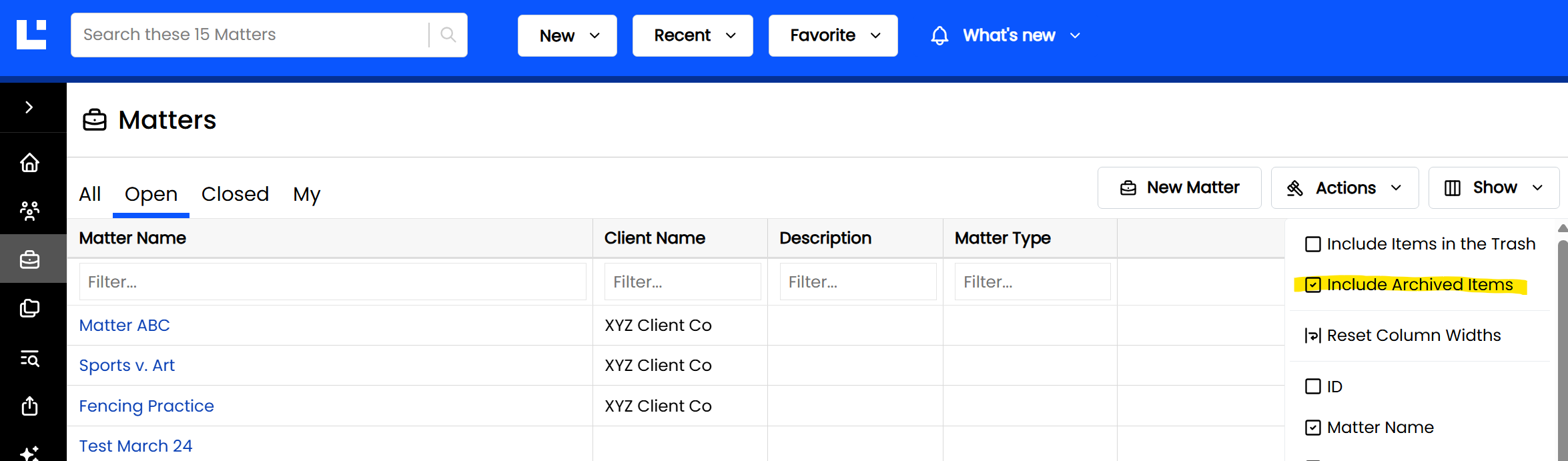
These toggles work with any view. For example, turn on Include Archived Matters while on the Closed view to see all closed Matters, including those you've archived. LexWorkplace remembers your toggle settings, just like it remembers your selected view.
Archive Items Within a Matter
Sometimes only part of a Matter is ready to archive. For example, a large litigation Matter may hold years of older discovery that no longer needs to be searched, alongside active pleadings you work on every day. You can archive just the older content, and leave the rest of the Matter active.
To Send Items to the Archive
You can archive Documents, Email, Notes, and folders.
To send a Document, Folder, Email or Note to Archive:
Open the Matter and browse to the item.
Click the item's three-dot menu.
Click Send to Archive.
When you archive a folder, everything in it (subfolders, documents, email, and notes) is archived with it.
Showing Archived Items on the Documents, Email, and Notes Tabs
Archived items stay in their original location, but are hidden on the Documents, Email, and Notes tabs by default. To see them in place (in their original location within the Documents, Email or Notes tab), click Show > Included Items in the Archive for that Matter.
The Archive Tab
Every Matter has an Archive tab, alongside Documents, Email, Notes, AI, and Sharing. The Archive tab shows everything that has been archived within that Matter, all in one place.
The Archive tab isn't a separate folder or location. Archived items still "live" in their original location; the Archive tab simply gathers them so you can find and manage them easily (much like the Trash Bin).
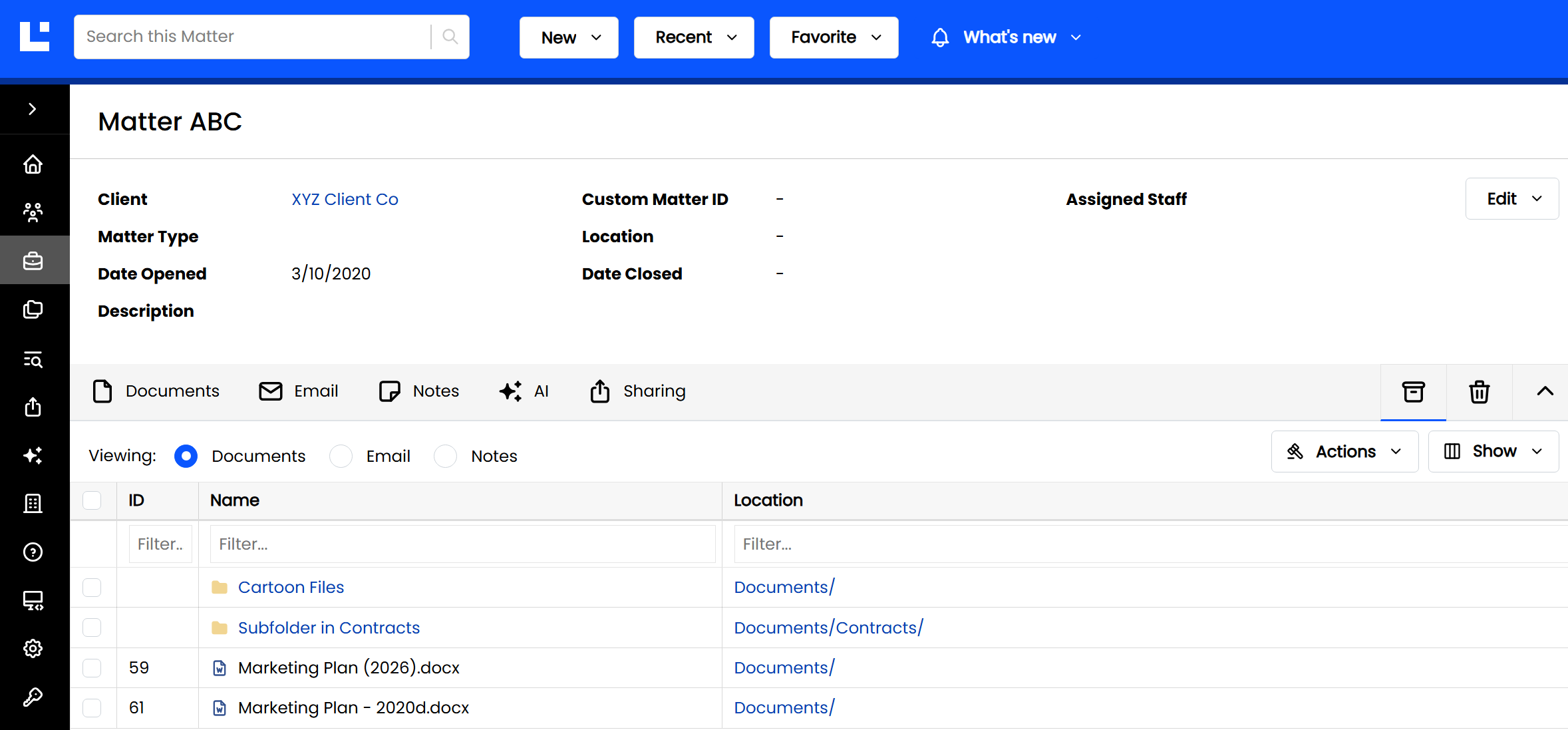
The Archive tab shows the following columns:
Column | Description |
|---|---|
ID | The item's LexWorkplace ID |
Name | The name of the archived item |
Location | The item's parent folder (where the archived item lives) |
Browsing Archived Folders
When you archive a folder, only that folder appears as an item on the Archive tab, not each item inside it. To see what's in an archived folder, click the folder name within the Archive tab. This will bring you to that folder within its original tab (Documents, Email or Notes tab).
Objects and Containers
As with the Trash Bin, when you archive an object that contains other objects, everything inside comes along with it.
Parent Object | Child Object(s) | Behavior if Archived |
|---|---|---|
Matter | Folders, Documents, Email, Notes | All child objects also archived |
Folder | Folders, Documents, Email, Notes | All child objects also archived. Only the folder appears on the Archive tab. |
Document | (None) | Selected Document(s) archived |
(None) | Selected Email(s) archived | |
Note | (None) | Selected Note(s) archived |
Archive vs. Trash Bin
Archive and the Trash Bin look and work similarly, but they serve very different purposes.
Archive | Trash Bin | |
|---|---|---|
Purpose | Keep data long-term at a lower storage cost | Hold deleted data until it's restored or permanently deleted |
Search, OCR, AI | Off | Off |
Open / edit documents | No | No |
Preview, rename, download a copy | Yes | No |
Where items appear | • Items within a Matter: The Matter's Archive tab | • The Trash Bin screen |
To reverse | Un-Archive | Restore |
See also: Trash Bin: Delete & Restore
Access & Permissions
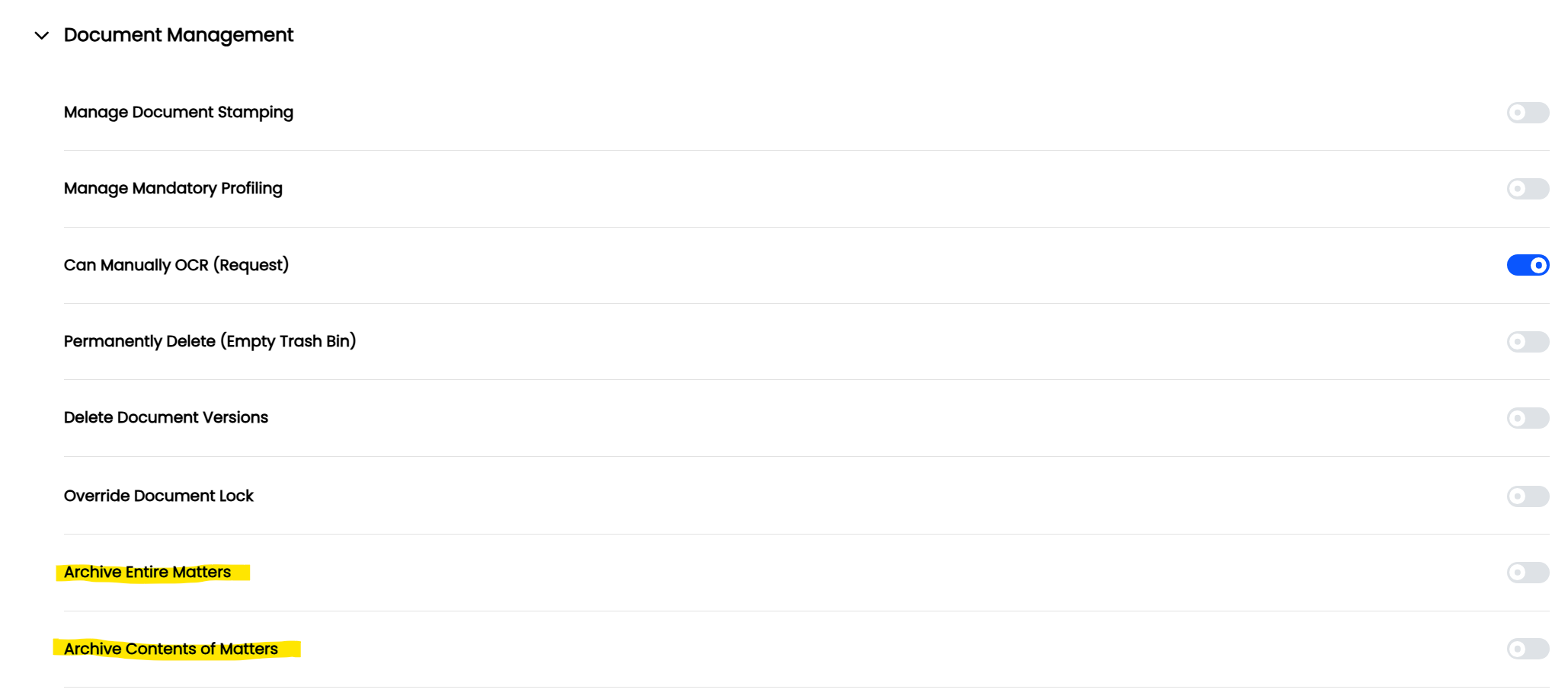
Two Rights control who can archive and un-archive. Both are found under the Document Management category of Rights:
Right | Allows the User To |
|---|---|
Archive Entire Matters | Archive and un-archive entire Matters |
Archive Contents of Matters | Send Documents, Email, Notes, and folders to the Archive within a Matter, and un-archive them |
Users without these Rights can still see archived Matters and the Archive tab, for any Matter they have access to. They just can't archive or un-archive.
Regular Matter access rules apply. Users only see archived Matters and items for Matters they have access to; Firm Admins can see all of them.
Related articles