Applies To
LexWorkplace Starter, Core, Advanced
AI Features in Beta
LexWorkplace's Matter AI and the underlying Large Language Models (LLMs) it uses are still early in their development lifecycle. Like any AI tool, LexWorkplace AI can make mistakes, and we recommend verifying important information.
Introduction to Matter AI
Matter AI brings the power of AI-assisted conversation to your entire Matter, not just a single document.
With Matter AI, you can have a conversation about the Matter, its contents (Documents, Email, and Notes), or the subject covered within the content.
Where Document AI lets you have a conversation about one document at a time, Matter AI knows everything about a Matter: its documents, emails, and notes. You can ask plain-language questions, and LexWorkplace will search across all of that content to find the answer.
Examples of questions you might ask Matter AI:
"When did Jane determine the product was defective?"
"When did the court schedule the follow-up hearing?"
"What case law is cited in the judge's most recent motion?"
"When did our client say they wanted the first draft by?"
Think of Matter AI as your always-available associate who has read every document, email, and note in the file.
Using Matter AI
How to Access Matter AI
Matter AI lives inside any Matter in LexWorkplace.
Open a Matter.
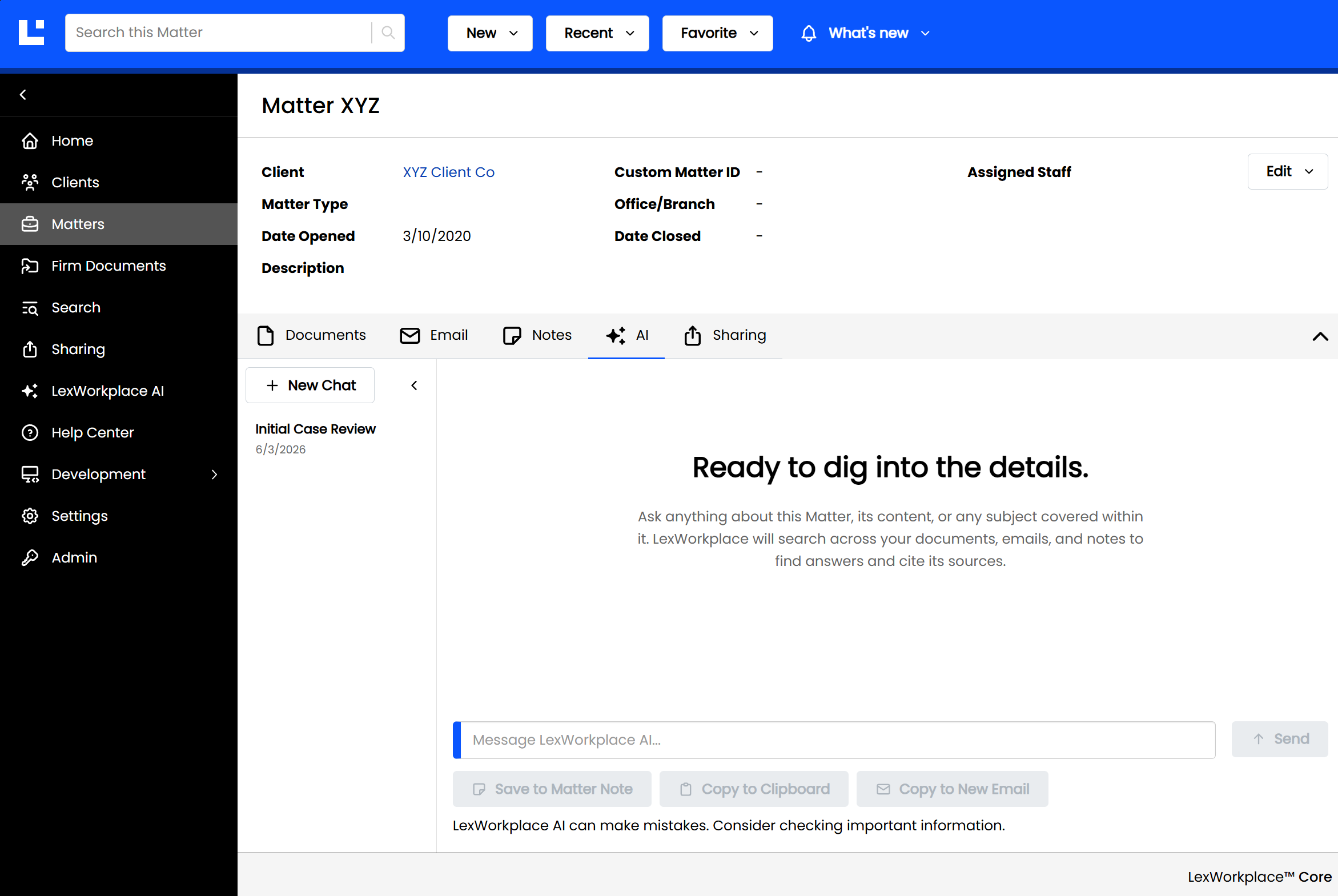
Click the AI tab (indicated by the sparkle icon ✦) in the Matter's tab bar.
A new conversation starts automatically each time you open the tab.
Asking Questions
Once you're on the AI tab, type any question about the Matter into the input box and press Enter (or click Send).
LexWorkplace will:
Identify the documents, emails, and notes most relevant to your question.
Use that content as context to generate an answer.
Display a response along with a Sources panel showing exactly which items informed the answer.
Tip
You can ask follow-up questions in the same conversation; Matter AI remembers the context of the current chat.
Sources Panel
After each response, Matter AI displays a Sources panel on the right side of the screen, showing the documents, emails, and notes it drew from. Sources are grouped by the question that generated them.
You can click to Open or Preview any Document, Email, or Note that was used as a source for this conversation.
By default, sources are grouped by message (i.e., by the question that generated them). For instance, if your AI conversation included three messages/queries from you over the course of the conversation, you’ll see three groups of Sources.
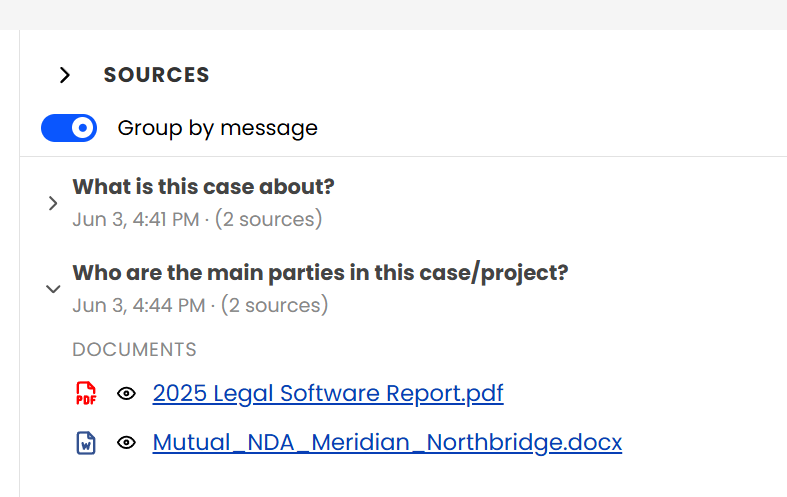
You can toggle grouping off using the "Group Sources by Message" toggle at the top of the Sources panel to see all sources in a flat list instead.
When AI Doesn't Know
Matter AI is designed to be honest about the limits of what it can find.
If LexWorkplace cannot find any relevant documents, email, or notes to answer your question, it will say so. For example, "I can't find any documents, email, or other data that speaks to [your question]."
If an answer can be inferred but isn't explicitly stated in the source material, Matter AI will flag that uncertainty. For example, "Based on the available information in this Matter, and based on the sources I've cited…"
As with any AI tool, we recommend verifying answers against the underlying source documents for anything important.
Conversation History
Matter AI automatically saves your conversation history, so you can pick up where you left off or refer back to a previous exchange.
Privacy Note
Conversation histories are per-user and only visible to the user who initiated them.
Accessing Past Conversations
A collapsible History panel sits on the left side of the AI tab.
Collapsed (default): A slim strip, with a clock/history icon, stays out of the way while keeping the chat area wide.
Expanded: Click the chevron or "History" label to open a ~260px panel showing your past conversations, grouped by Today / Yesterday / This Week / Older. Each conversation is given an auto-generated title based on your first prompt.
LexWorkplace remembers whether you prefer the panel open or closed; that preference persists as you move between Matters.
Managing Conversations
Each conversation in the History panel has a three-dot menu (⋯) with the following options:
Action | Description |
|---|---|
Rename | Edit the auto-generated conversation title |
Delete | Permanently delete the conversation (a confirmation prompt will appear) |
Save as Matter Note | Save the full conversation as a Note in this Matter's Notes tab |
Starting a New Conversation
Click + New Conversation at the top of the History panel (or simply navigate away from and back to the AI tab) to start fresh.
Conversation Actions
At the bottom of the chat window, three action buttons are available after a response is generated:
Button | What It Does |
|---|---|
Save as Matter Note | Saves the entire chat conversation as a Note in this Matter |
Copy to Clipboard | Copies the full conversation to your clipboard |
Copy to New Email | Opens a new email compose window with the conversation pre-filled in the body |
Matter AI vs. Document AI
Matter AI is something of a natural evolution of Document AI. For users familiar with the latter, here is a chart comparing Document AI and Matter AI.
Document AI | Matter AI | |
|---|---|---|
Scope | A single document | All documents, emails, and notes in a Matter |
Access | Hover over any document → click the AI icon (✦) | Matter → AI tab |
Conversation history | Not saved | Saved per-user |
Sources panel | Not applicable | Yes — grouped by message and clickable |
Related: Document AI
A Note on AI Accuracy
Matter AI uses a technique called Retrieval-Augmented Generation (RAG) to find relevant content before generating an answer. This means it works best when the relevant information actually exists in the Matter's documents, emails, or notes. If key details haven't been saved to LexWorkplace, Matter AI won't be able to surface them.