Applies To
LexWorkplace Starter, Core, Advanced
Introduction to LexWorkplace AI
LexWorkplace system-wide AI (hereafter simply called LexWorkplace AI) lets you have a conversation with your entire firm's knowledge — every Client, every Matter, and across your Firm Documents. Ask a question in natural language, and LexWorkplace AI searches across your documents, emails, and notes, reads what it finds, and answers with citations so you can see exactly where each answer came from.
If Matter AI is an associate who has read the entire Matter file, LexWorkplace AI is the associate who has read every Matter file (and doesn't mind being asked at 11pm).
You might ask:
"Which matters involve a non-compete dispute?"
"How many acquisitions has the firm handled, and for which clients?"
"Find our most recent engagement letter template for estate planning."
"What's the status of the Henderson and Alvarez matters?"
Note
LexWorkplace AI and the underlying Large Language Models (LLMs) it uses are still early in their development lifecycle. AI can make mistakes — always verify important results against the source documents.
Where LexWorkplace AI Fits
LexWorkplace AI is the widest of three levels of AI in LexWorkplace:
Feature | Scope | Where to Find It |
|---|---|---|
Document AI | A single Document | Open a document, then use the AI panel |
Matter AI | One entire Matter (Documents, Email, Notes) | Open a Matter, then click the AI tab |
LexWorkplace AI | All Matters and Firm Documents | LexWorkplace AI in the left navigation |
See also: Matter AI | Document AI
How to Access LexWorkplace AI
You can access LexWorkplace AI from the Main/Left Navigation.
Click LexWorkplace AI in the left navigation menu.
A new conversation opens, ready for your question.
Type your question in the message box and press Enter (or click Send).
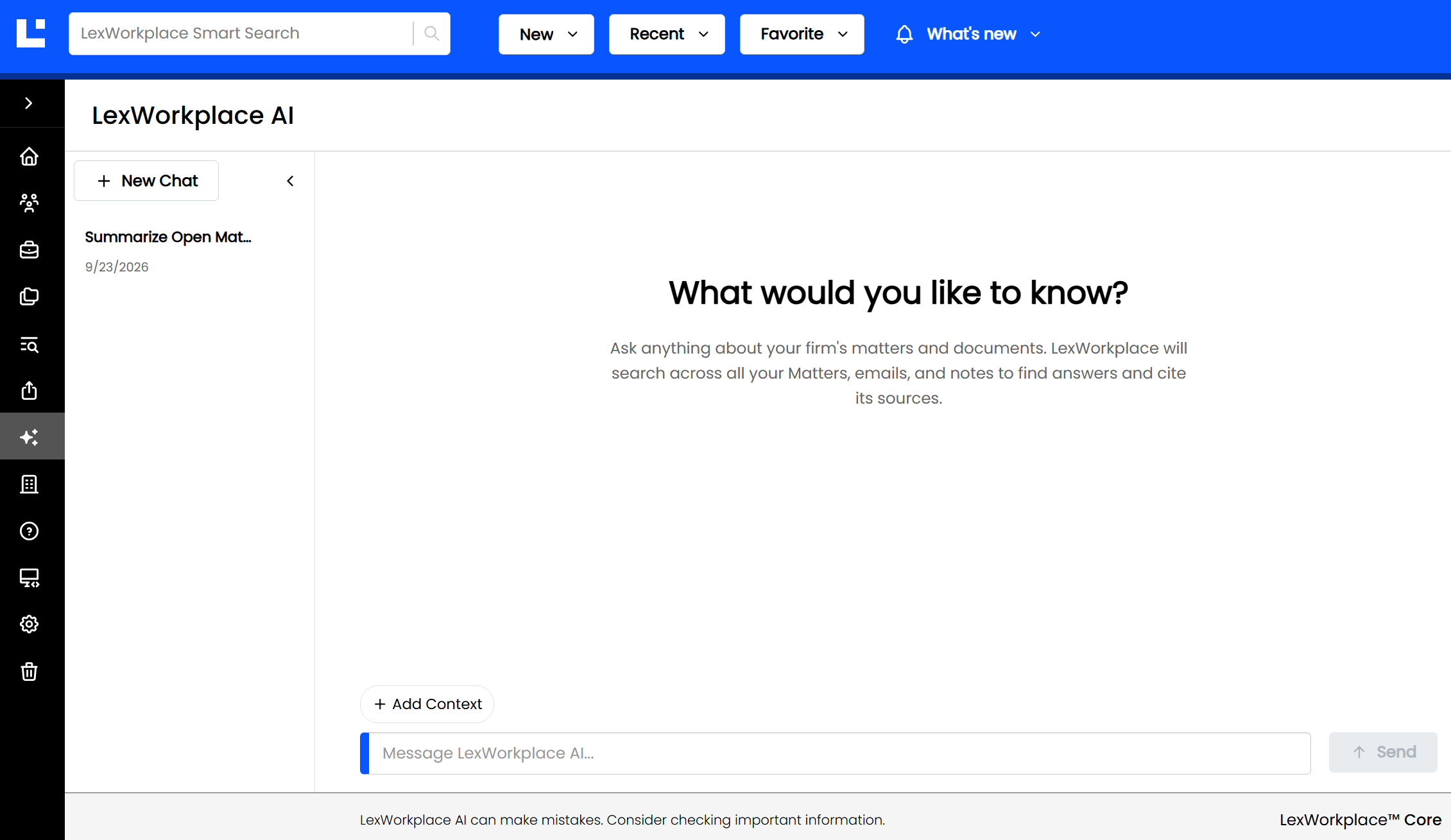
This is the LexWorkplace AI page. Your conversation history is on the left, and sources and context appear on the right.
Asking Questions
When you send a question, LexWorkplace AI:
Figures out what to look for. It decides which searches make sense for your question.
Searches across your firm. It runs those searches across your Matters, Firm Documents, emails, and notes.
Reads and answers. It reviews what it found and writes an answer, citing its sources.
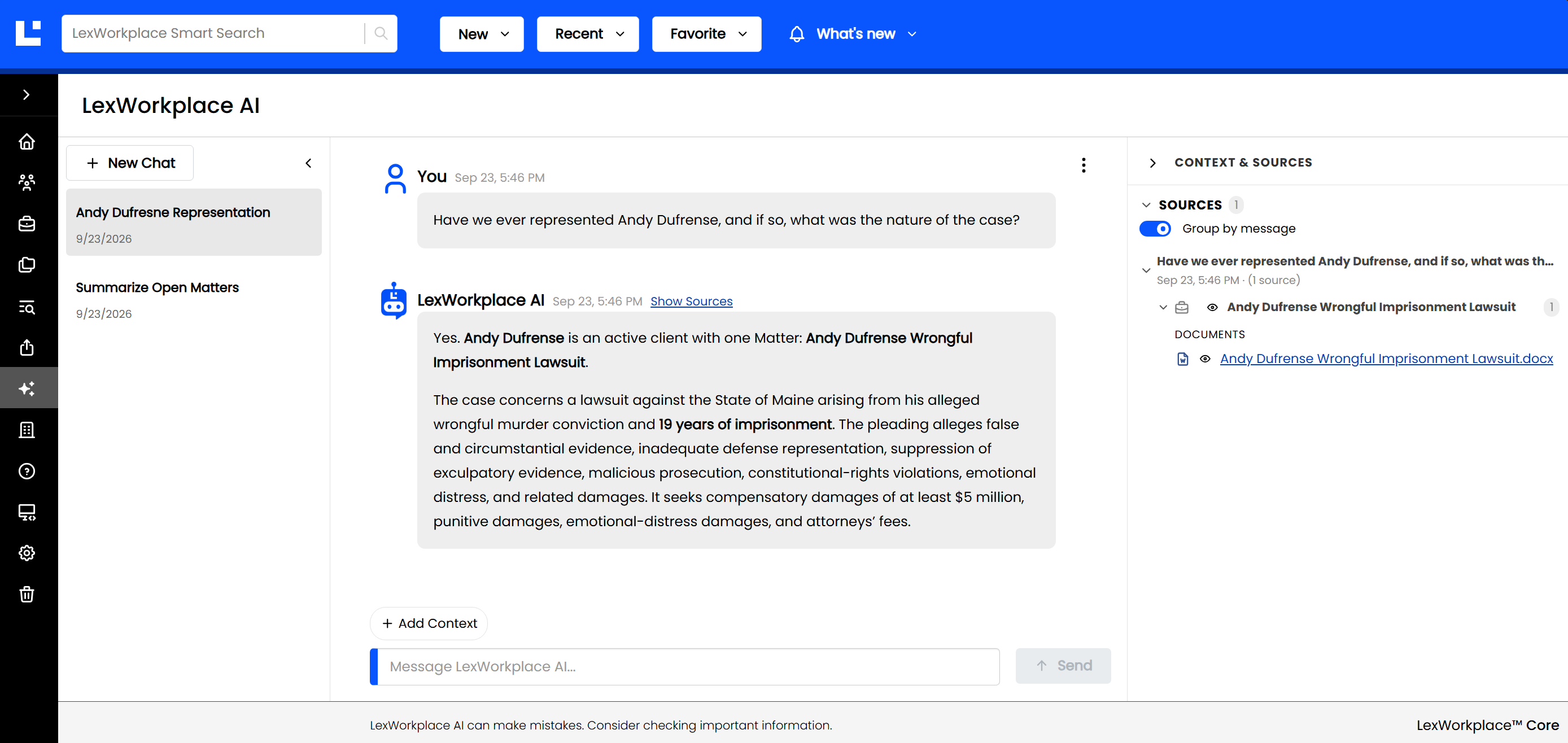
LexWorkplace AI answers your question and cites the documents, emails, and notes it used on the right-hand sidebar.
Follow-up Questions
LexWorkplace AI remembers the conversation, so you can keep drilling down: "Which of those are still open?" or "Summarize the purchase agreement in the second one."
Stopping a Response
Asked the wrong question, or already have what you need? While LexWorkplace AI is thinking or writing, the Send button becomes a Stop button. Click it to stop the response.
Sources Panel
After each answer, the Sources panel (on the right) shows every document, email, and note LexWorkplace AI used. Because answers can span many Matters, sources are grouped by Matter so you can see at a glance where the information lives.
Click a source to preview or open it.
Click a Matter to preview the Matter's details.
Sources are grouped by Matter, so you can see which Matters informed each answer.
Adding Context
Because LexWorkplace AI starts with everything, sometimes it helps to point it in the right direction. Add Context lets you explicitly include specific items in your conversation, so LexWorkplace AI reads them even if its own search wouldn't have found them.
You can add:
Matters
Documents
Emails
Notes
To add context:
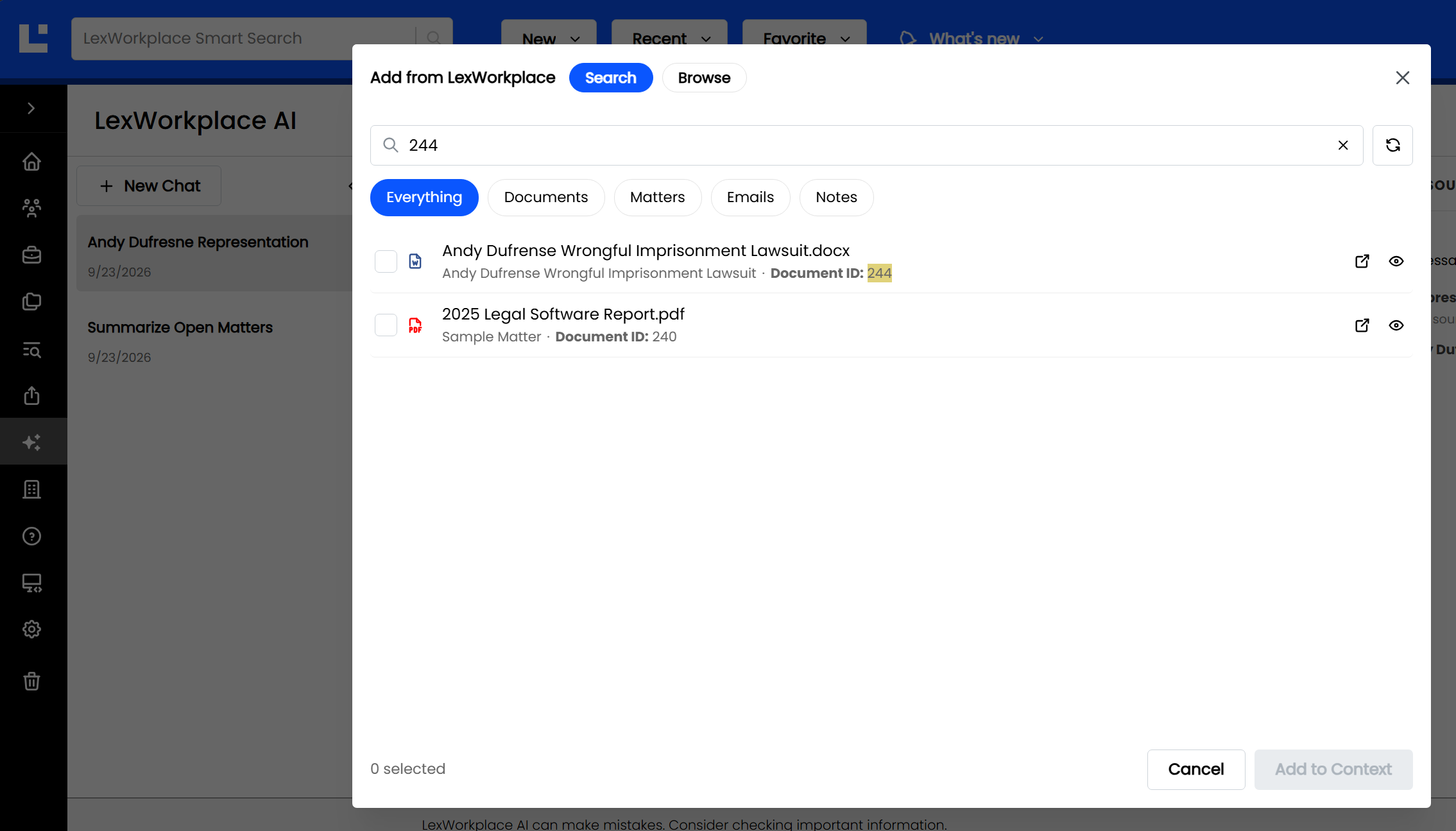
Above the Message input box, click Add Context.
Search for the item you want to add. You can search by name, Document ID, Matter ID, or you can browse Matters in LexWorkplace.
Select the item to add it to the conversation.
Tip
If you know exactly which Matter or document holds the answer, add it as context. It's the fastest way to get a precise answer.
Custom AI Instructions
LexWorkplace AI can be tuned to your firm and to you, so you don't have to repeat the same background ("we're a litigation firm," "keep it brief") in every conversation.
There are two levels to custom AI instructions in LexWorkplace:
Firm-Level Custom AI Instructions | User-Level Custom AI Instructions | |
|---|---|---|
Who Can Set/Manage It | Members of any group with the Manage Firm-wide Custom AI Instructions right. (See: Groups + Rights Management) | Every user, for their own login |
Where to Set/Manage It | My Firm page (left navigation) | My Profile page (top-right under user icon) |
Instructions Apply To | All users in the firm | Just you |
Good For | Firm background, practice areas, firm-wide rules and conventions | Your role, your preferences for tone, length, and format |
Both sets of instructions are added automatically to every LexWorkplace AI conversation.
Firm-Level Custom Instructions + Context
You can define your firm-level custom instructions, as well as provide LexWorkplace AI with additional useful context about your firm, in the My Firm page (accessible from the left/main navigation).
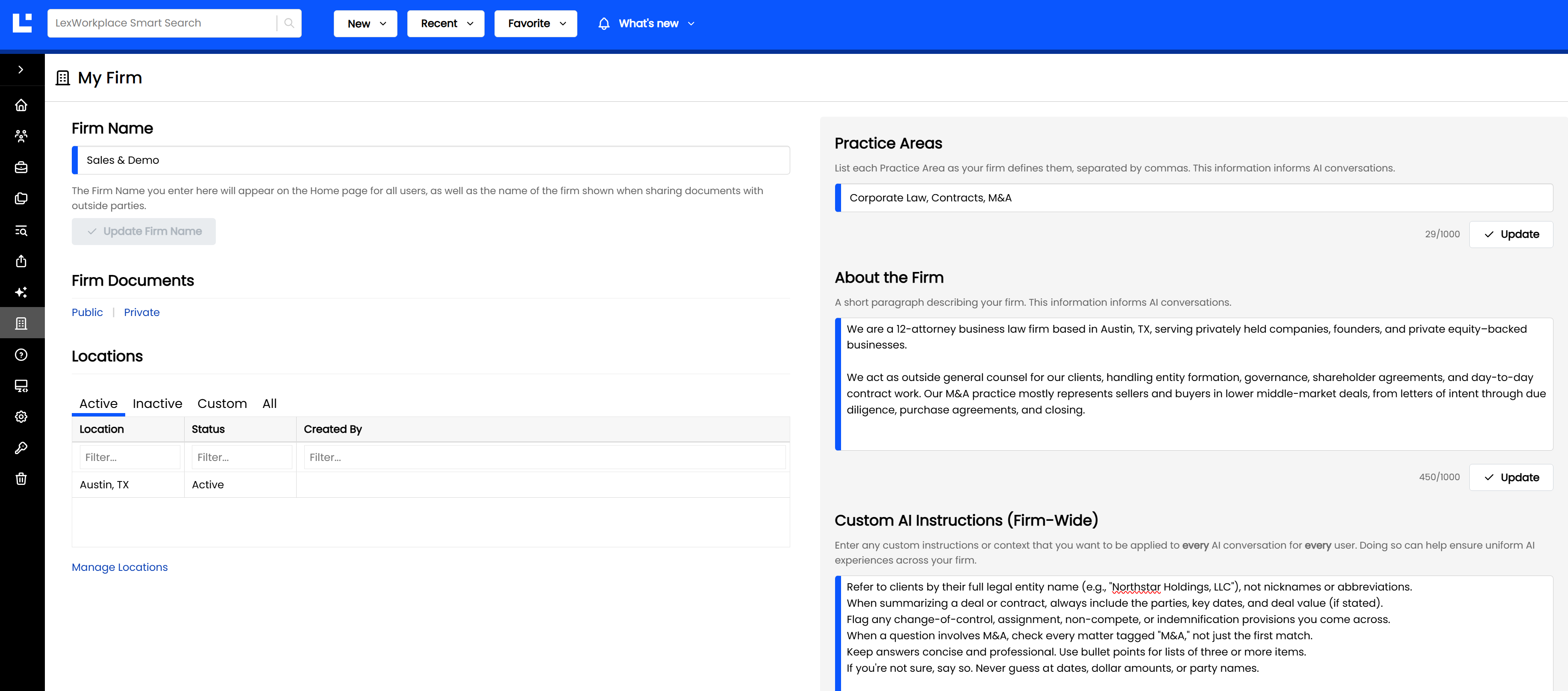
Here, users with the appropriate Rights can…
List the firm's Practice Areas, separated by commas
Give a short description of the firm overall
Give additional firm-wide custom AI instructions
Examples of firm-wide instructions
"We are a 20-attorney firm focused on business law and M&A in Minnesota and Ontario."
"Always refer to clients by their full legal entity name."
"Use Canadian spelling in all responses."
"When summarizing a matter, include the responsible attorney and the matter status."
Note
LexWorkplace AI will do its best to apply context from these fields as well as the User-Level Custom Instructions (described in more detail below), as relevant to the user’s AI query. Results may not be perfect each time, as LLMs are a developing technology.
User-Level Custom Instructions
Your personal instructions live on My Profile (formerly User Attributes).
To get there, click your user icon in the top-right corner and select My Profile. (It's also still available under Settings.)
Click your user icon (top right), then My Profile.
Find the Custom AI Instructions (Just My Login) section.
Enter your instructions, then click Save.
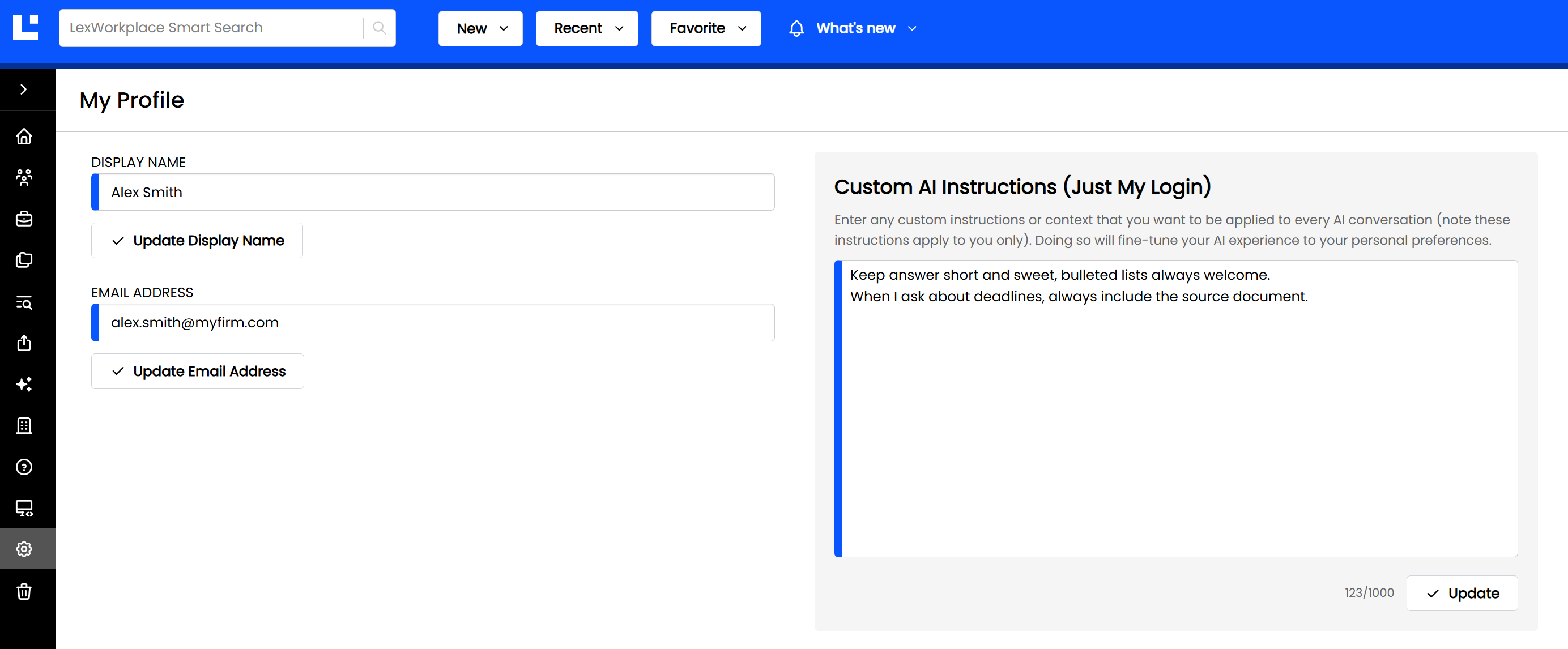
Add personal instructions that you want to apply to every AI conversation — for you only.
Examples of personal instructions
"I'm a paralegal on the litigation team."
"Keep answers short and use bullet points."
"When I ask about deadlines, always include the source document."
Tip
When in doubt, keep personal instructions to preferences (tone, format, your role) and leave firm rules to the My Firm page.
Conversation History
Every conversation is saved automatically and listed in the history panel on the left, grouped by date. Click any conversation to pick up where you left off.
Note: Conversations are private to you — other users can't see them.
Each conversation has a three-dot menu with these options:
Rename: Give the conversation a more descriptive name
Delete: Remove the conversation from your history
Saving + Sharing
In the three-dot menu at the top-right of the chat window, you’ll see two options:
Copy to Clipboard: Copies entire conversation to your clipboard (where you can paste it elsewhere, formatting included)
Copy to New Email: Opens a new/draft email and copies entire conversation to the message body
Getting the Best Answers
LexWorkplace AI is able to search across all documents and data within your account, so a little direction goes a long way.
Here are some suggestions to get the most from LexWorkplace AI when posing questions.
Name the Matter, tag, or type. "Look at every Matter tagged M&A" will find more than "How many acquisitions have we done?"
Ask it to read the documents. If an answer seems to rely only on Matter details (name, client, status), follow up with "Read the documents in these Matters and summarize them."
Add context. If you know where the answer lives, use Add Context to include that Matter or document directly.
Ask follow-ups. If an answer seems incomplete, ask "Are there any others?" or "Check Firm Documents too."
When LexWorkplace AI Doesn’t Know
LexWorkplace AI, while powerful, is still limited to its trained knowledge plus context from data in your LexWorkplace account.
If LexWorkplace AI can't find relevant information, it will tell you rather than guess.
LexWorkplace AI can only find what's saved in LexWorkplace. If a document was never uploaded (or an email was never filed), AI can't see it.
LexWorkplace AI may not find every relevant item on its first search, especially for broad questions. Use the tips above to narrow things down.
Always verify important results against the cited sources.
Access + Permissions
LexWorkplace AI respects your existing access; it can only access the Matters, folders and Documents that you can.
Firm Custom AI Instructions can be edited only by users with the Manage Firm-wide Custom AI Instructions right, found under the new AI section in Groups and Rights.
Firm Name can be edited only by Firm Admins.
My Custom AI Instructions can be edited by every user, for their own login only.