Applies To
LexWorkplace Starter, Core, Advanced
Introduction to Rights
There are many actions that a user can perform in LexWorkplace. Many of these actions/operations are associated with the notion of a Right in LexWorkplace. By using Groups + Rights Management, firms can tightly control which actions certain users/groups can perform (and which they cannot).
Terminology
Term | Applies To | Definition |
|---|---|---|
Rights | Actions | The ability for a user to perform certain actions or operations (such as creating Matters, sharing Documents or enabling an Integration). |
Permissions | Matters/Files/Folders | The ability for a user to access a particular Matter and the content within it. |
System Groups
Rights are assigned at the Group level. LexWorkplace starts with two System Groups (which cannot be deleted or modified). Firm Administrators can create additional groups as necessary to shape the level of access/Rights any given user has.
System Group | Description |
|---|---|
Firm Admins | Members of your firm with the highest level of access, can access all data + administer all LexWorkplace settings. |
Entire Firm | All members of your firm (new users are added automatically). |
Managing Groups & Rights
Rights in LexWorkplace are Group-based, meaning Rights are applied to Groups (and thereby all members of that group) rather than users individually.
To manage Rights in LexWorkplace, navigate to:
Settings > Permissions & Access (heading) > Manage Groups + Rights
From here you’ll see two tabs:
Manage Groups - Where you can create, edit and assign Rights to Groups.
Calculate Rights - Where you can see the effective Rights for any given user based on Group membership.
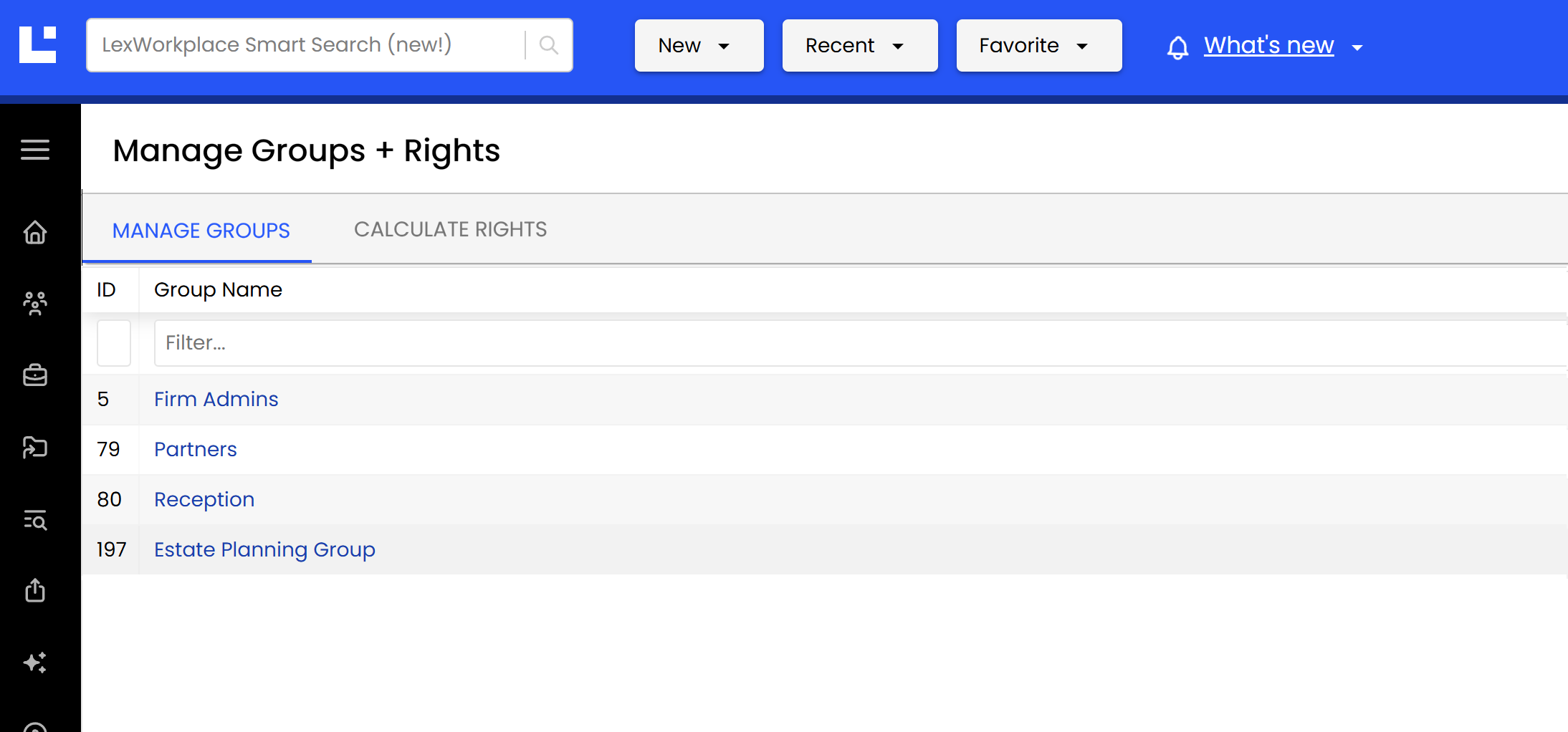
Managing Groups
In addition to the two System Groups, you can create Groups to reflect different teams, departments or functional units within your firm. The purpose of a Group is to apply and manage Rights for members of any given group.
If you haven’t already, create a new Group:
Go to the Manage Groups + Rights screen (first tab).
Click New Group.
Enter a Group Name and add members as appropriate.
Next we can define the Rights for any members of this group.
Managing Rights
When creating or editing a Group, you will see a list of all available Rights in LexWorkplace below the Group Members section. From this list, you can enable or disable specific Rights. Any member of the Group will receive the Rights that are enabled for that Group.
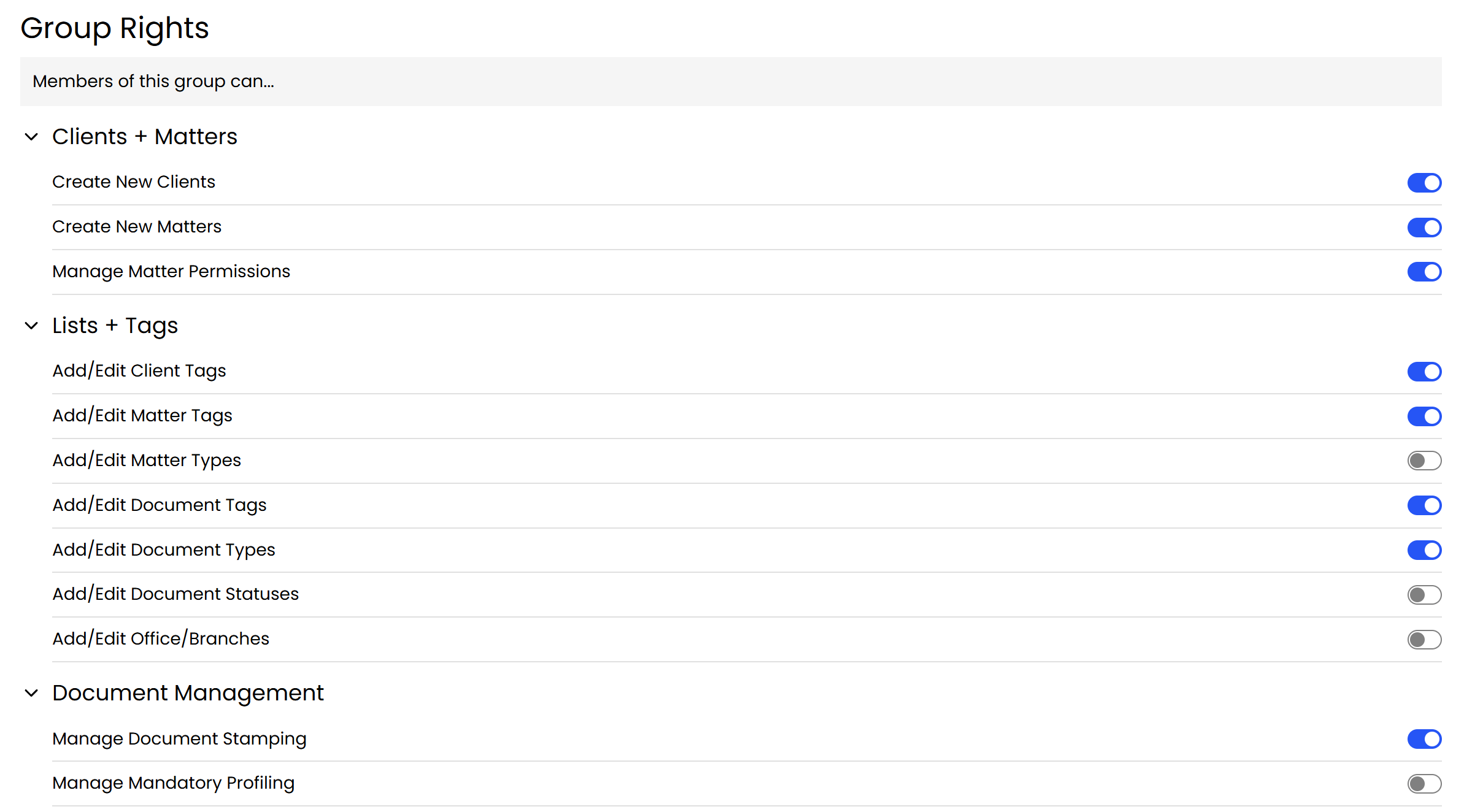
Permissive By Default
LexWorkplace Rights are permissive by default. This means that if a user belongs to Group A, and Group A does not have the Right “Create New Clients,” but that user belongs to another group that does have that Right, the net-effect is that user will have the Right to create new Clients.
Moreover, as every member of your firm belongs to the System Group “Entire Firm,” any Rights you Grant to the Entire Firm Group will apply to all users, regardless of other Group membership.
Calculate Rights
Because users can belong to multiple Groups, and each Group may have different Rights assigned, it may not always be clear which Rights a user ultimately has or which Group granted a specific Right.
To see the combined result of a user’s Group memberships, navigate to the Calculate Rights tab. Select a user from the dropdown (for example, yourself) and click Calculate Rights.
LexWorkplace will display a list of all available Rights, indicating whether the selected user has each Right and, if so, which Group membership provides it.
.png)
Related
LexWorkplace Firm Admins