Applies To
LexWorkplace Starter, Core, Advanced
In LexWorkplace you can share one or more documents with outside/external parties, such as clients, outside attorneys or other third parties.
Sharing Documents
To share one or more documents with an external recipient (a non-member of your law firm), simply:
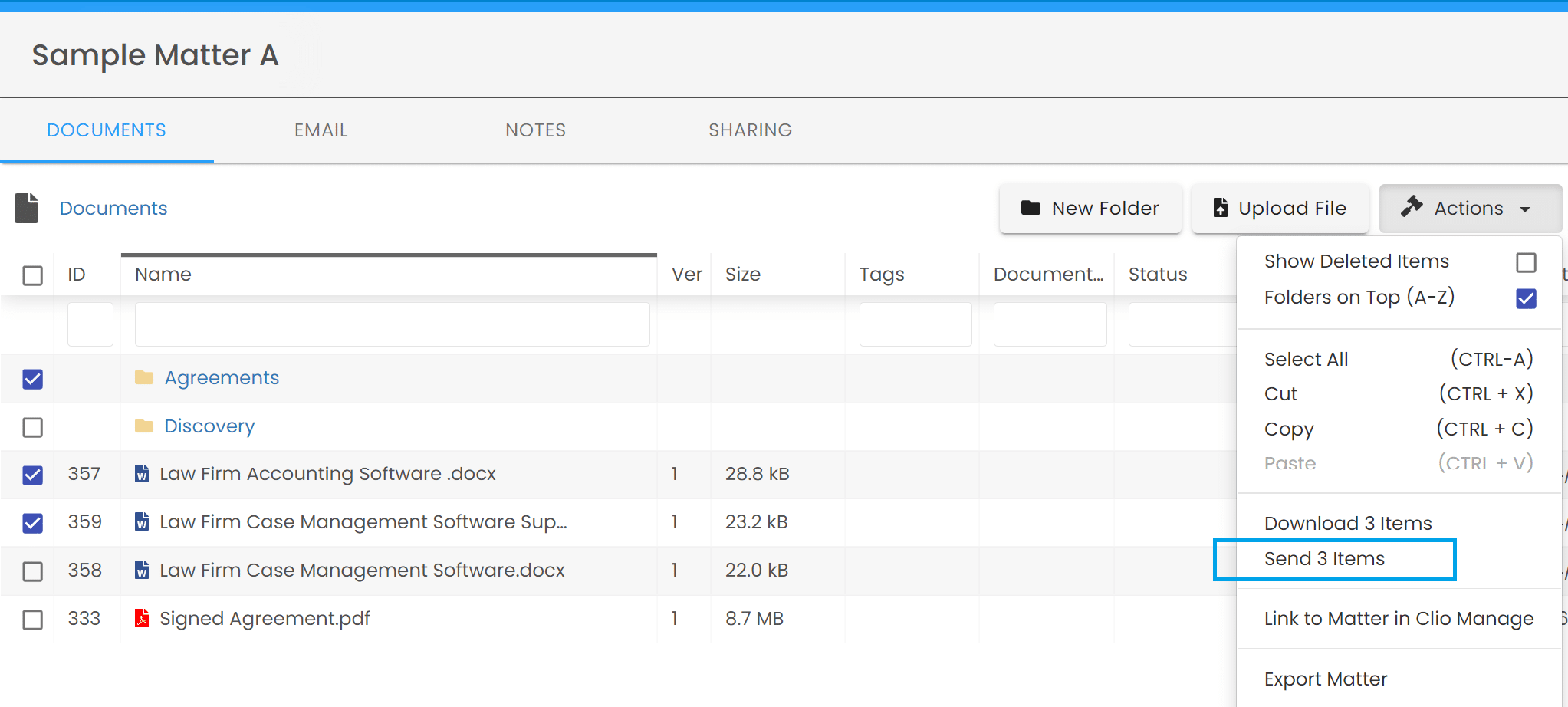
Select the checkbox next to any/all files and folders you wish to send
Click Actions > Send X Items
Note that you can select one or multiple folders, and LexWorkplace will send the folder and all contents.
Next, you’ll be prompted to enter the desired recipient(s) (you can send to one or multiple email addresses), as well as a message to accompany the shared files.
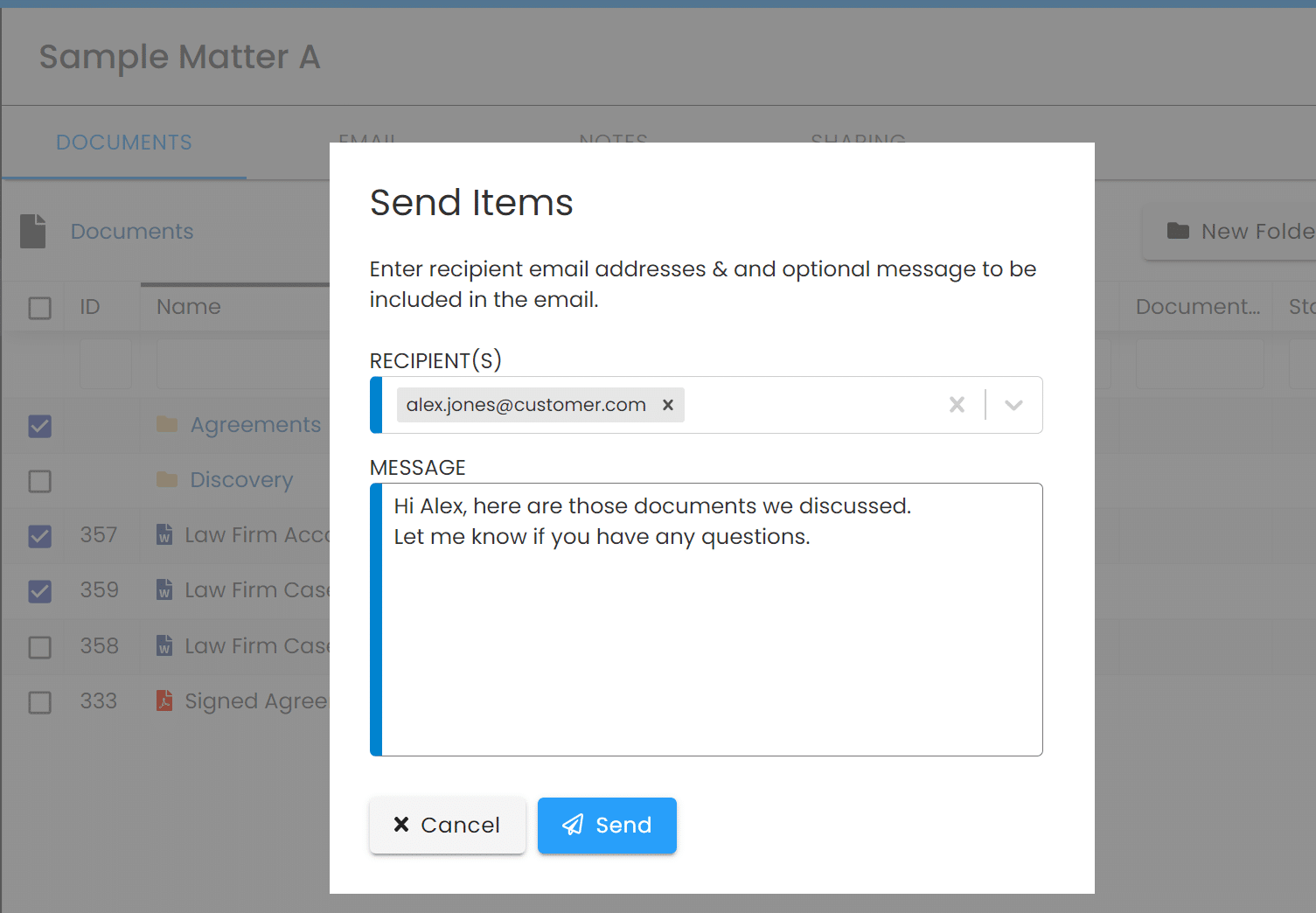
Upon clicking Send, LexWorkplace will send the recipient(s) an email with a secure link they can click to download the selected files.
Recipients
All recipients you selected will receive an email from LexWorkplace with a link to download their files.
A few important notes:
For security reasons, the download link is active for 30 days. You can revoke a share sooner than 30 days (explained below).
Recipients will receive a copy of the documents as they existed at the time they were shared (effectively a “snapshot”). This means you can make changes/updates to documents without affecting the copy your recipients have.
Managing Shares
By Matter
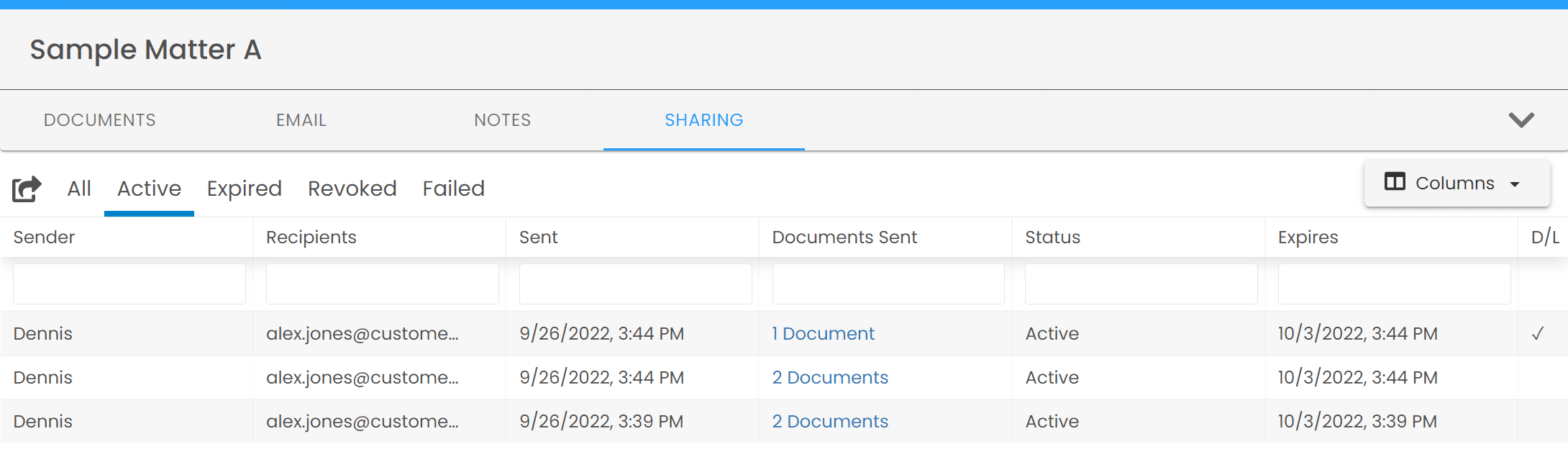
Once a set of documents has been sent to an external recipient (an event we call a Share), a record of this share will appear in the Sharing tab of that matter.
You can navigate to the Sharing tab of any given matter to see all Shares that have been sent within this matter.
A few notes on seeing Shares:
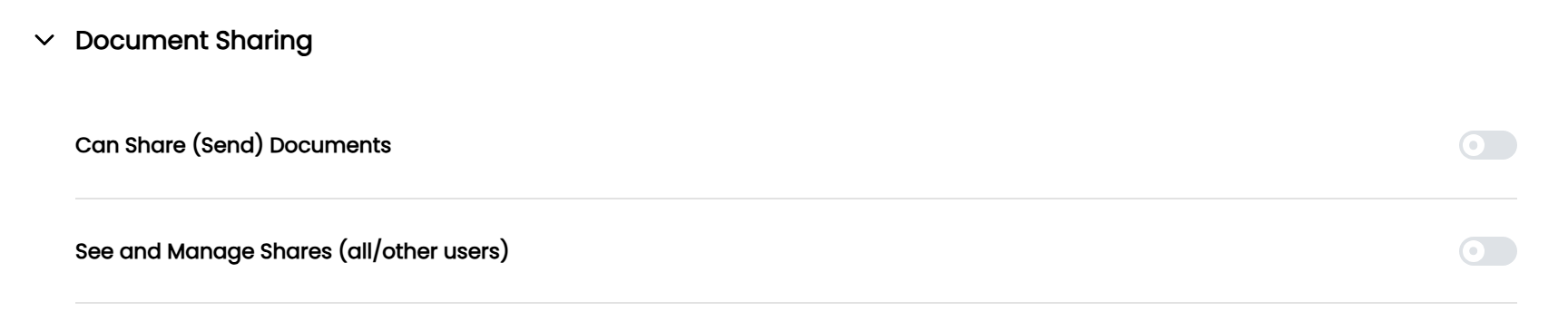
A user must have the right Can Share (Send) Documents to be able to share with external parties (configurable in Settings).
By default, users can only see Shares that they sent, unless they have the right See and Manage Shares (all/other users).
For more information on Rights, see: Groups + Rights Management.
The Sharing tab of a matter will show:
Sender: The LexWorkplace user who sent this Share
Recipients: The external recipient(s) that documents were sent to
Sent: Date and time the Share was sent
Documents Sent: Number of document sent (click to see details)
Status: Processing, Active, Expired or Revoked
Expires: When this Share expires (30 days from day/time sent)
D/L: Shows ✓ if any recipient has downloaded the document(s)
You can click the three-dot menu in the Recipients column to perform a number of operations to active shares:
View Share Info: Displays complete info for this share, including document list, recipients, message and download status.
View Share Download Link: Get (copy to clipboard) the external sharing link (URL)
Resend Share Email: Resends the original email to your recipient (available if still within the 30 day window)
Revoke Share: Immediately cancels the share; the download link will no longer work even if the recipient(s) still have the original email.
All Matters
The process described so far outlines how to share documents, and how to see active and past Shares within a single Matter. You can also navigate to Sharing from the left main navigation. This will show:
All Shares you have sent within any Matter.
If you have the Right See and Manage Shares, you will see all Shares across all Matters for all users.
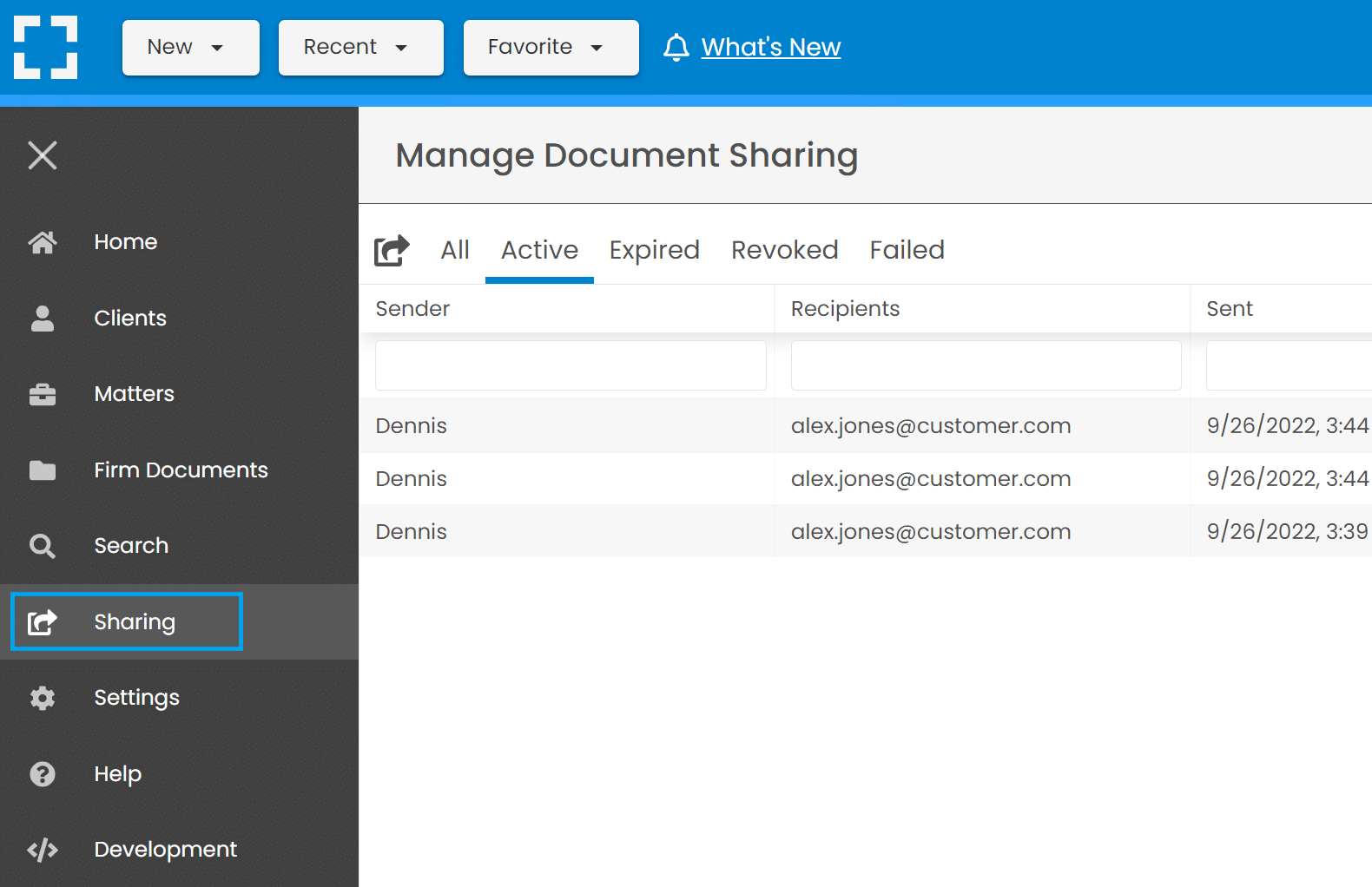
From the Manage Document Sharing screen, users will see all shares for any matters (that they have access to), and can filter and sort via the column heading fields.
Troubleshooting Email Delivery
If recipients claim they are not receiving share emails from LexWorkplace, we recommend the following troubleshooting steps.
Ask the recipient to check their Junk/Spam folders, as well as Updates tab (if using Gmail)
Resend the Share Email (from three-dot menu, described above), if the Share is still within the 30 day window.
If these steps prove unsuccessful, you can also copy the Download Link/URL from the three-dot menu (described above), paste the link into a new email, and email the recipient directly