LexWorkplace Release
October 23, 2025
In This Release
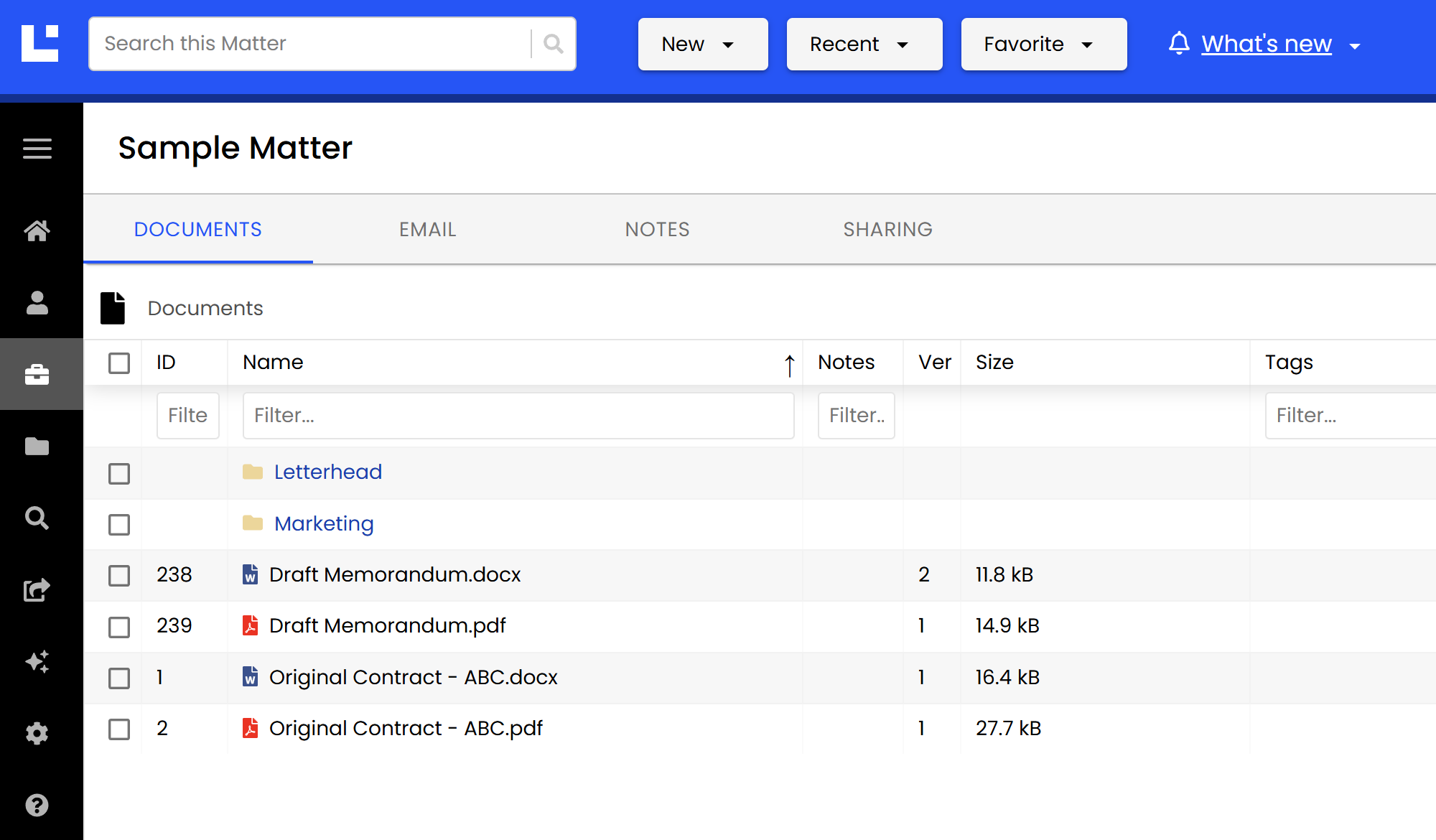
New LexWorkplace Look
New Enhanced Delete & Restore Functionality (Phase 2 of 2)
LexWorkplace has a new look!
We’re excited to share that the LexWorkplace application has a fresh new look!
Our updated logo and refreshed app design mark the next chapter in our mission to deliver the best document and email management experience for law firms.
Here’s What’s New
A Modern Logo: A fresh visual identity that reflects the innovation and professionalism of our platform.

A Refined Interface: Cleaner layouts, and updated visuals for a more seamless experience.
Enhanced Delete & Restore: Recap
In an earlier LexWorkplace update, we released significant enhancements to the delete and store capabilities of LexWorkplace. As described, this new functionality will be rolled out in two discrete phases:
Phase | Timeframe | Description |
|---|---|---|
Phase 1 | Released May 16, 2025 (Release Notes) | Change of deleted object behavior, introduction of Trash Bin, updated buttons/iconography |
Phase 2 | Released July 2025 (This Release) | Central Trash Bin (Screen/View), Permanent Delete, Delete Activity/Log |
Phase 2 (This Release)
The second phase will complete LexWorkplace’s Enhanced Delete & Restore update started in Phase 1.
Overview
New central Trash Bin (screen/view)
New Permanent Delete Action
New Delete Activity/Log
The New Trash Bin
What it Is + Where to Find It
New in this release is the new, central Trash Bin in LexWorkplace.
Historically, you could only see deleted items (now described as Items in the Trash Bin) in their current location or the location where the object was when it was deleted (such as: Matter ABC > Folder 1 > Folder 2 > Deleted Document).
Going forward, users can see items that have been deleted (moved to Trash) in the new Trash Bin screen, a single, central screen for all objects that have been moved to the Trash. You’ll find the new Trash Bin in LexWorkplace’s main (left) navigation menu.
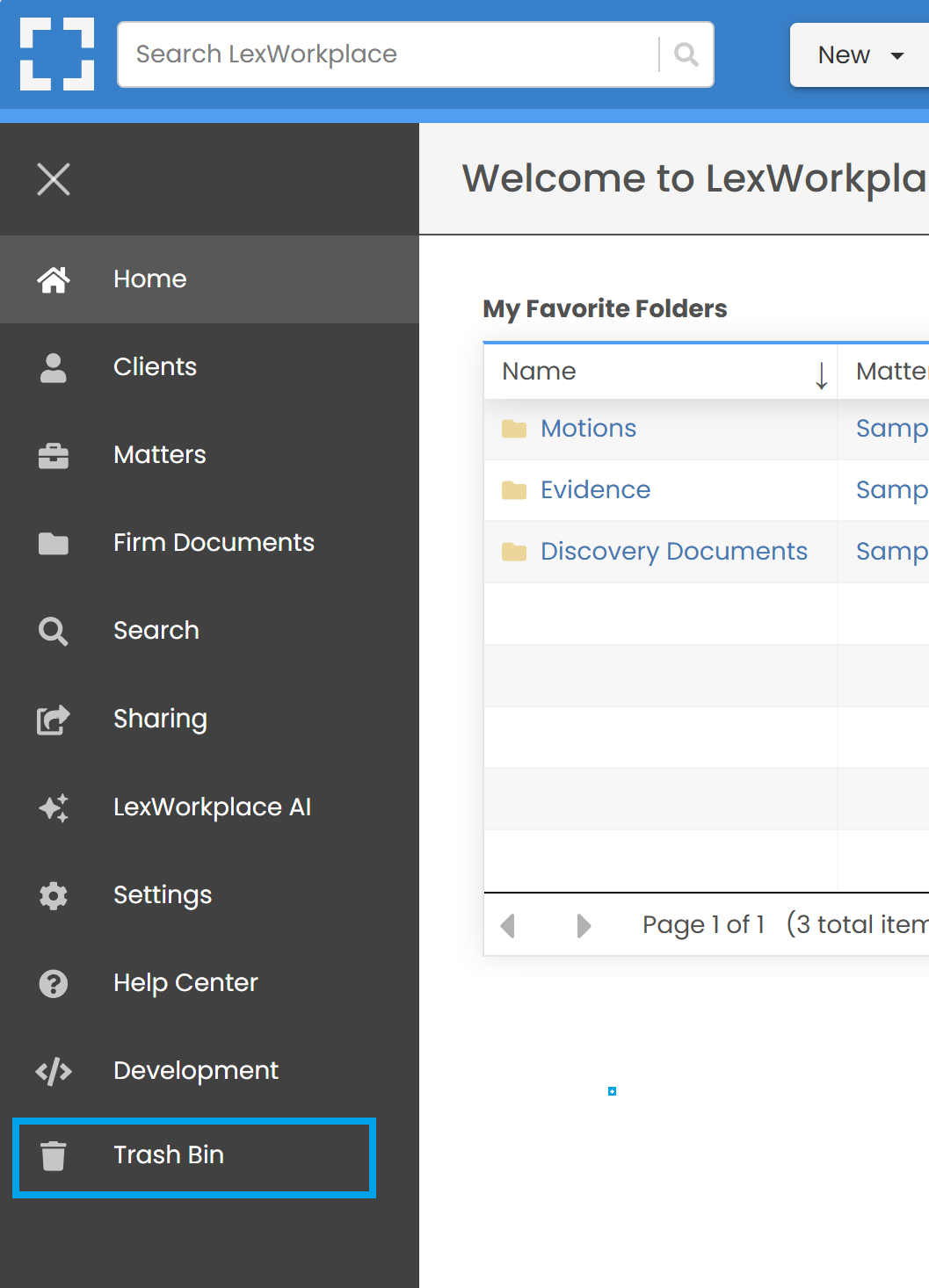
This will bring you to the Trash Bin (screen).
Here you will see all objects that have been moved to the Trash Bin, organized by object type across 5 tabs:
Clients
Matters
Documents
Email
Notes
(Plus an additional tab called Activity, which we’ll describe shortly.)
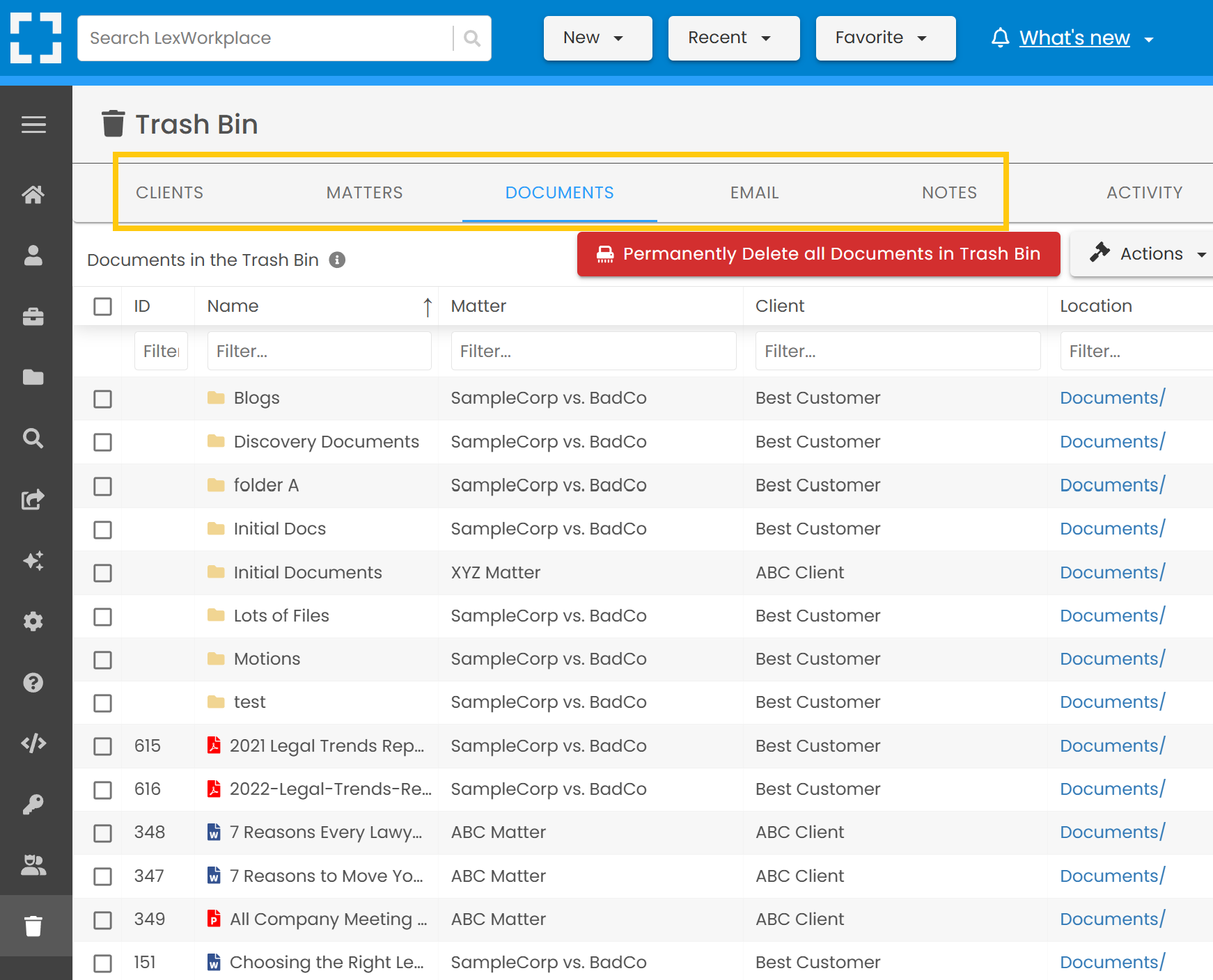
You can filter and sort on all column headings, just like elsewhere in LexWorkplace.
For instance, on the Documents tab, you could apply a filter to just see documents from a specific matter, or in a specific location/folder.
A Note on Access/Permissions
When it comes to the question of “who can see what in the Trash Bin?”, regular access/permission rules apply, and access rights behave no differently in the Trash Bin than elsewhere in LexWorkplace.
Firm Admins have access to all objects (clients, matters, documents, email, and notes) in the Trash Bin.
All other Users will see only the objects in the Trash Bin that they have access to.
Actions: Restore, Permanently Delete
You’ll find Clients, Matters, Documents, Email and Notes that have been moved to the Trash Bin on their respective tabs. Here you can
Restore one or more objects from the Trash Bin, or:
Permanently Delete one or more objects in the Trash Bin.
WARNING
Permanently deleting any object is truly permanent and cannot be undone.
Objects & Containers
Some objects contain others, such as a Client containing one or more Matters, and Folders containing one or more Documents.
When a user moves an object (parent) that contains other objects (child objects) to the Trash Bin, in most cases, the child objects will be moved to the Trash with the parent object. However, only the parent object will appear in the Trash Bin list for that object type.
Parent Object | Child Object(s) | Behavior if Moved to Trash |
|---|---|---|
Client | Matter | Only Client (record) moved to Trash Bin, (child) Matters remain unchanged |
Matter | Folders, Documents, Email, Notes | All child objects also moved to Trash Bin |
Folder | Folders, Documents, Email, Notes | All child objects also moved to Trash Bin |
Documents | (None) | Selected Document(s) moved to Trash Bin (and nothing more) |
(None) | Selected Email(s) moved to Trash Bin (and nothing more) | |
Notes | (None) | Selected Matter Note(s) moved to Trash Bin (and nothing more) |
Here are two examples.
Example #1: User Deletes a Matter
A user moves the matter XYZ Matter to the Trash Bin. This matter holds, among other things, a particular document named FindMeLater.docx. All child objects (folders, documents, email, etc.) have also been moved to the Trash Bin, but the user will not see FindMeLater.docx in the Documents tab of the Trash Bin. FindMeLater.docx is in the Trash Bin but is not visible here because it was not the specific object that was deleted (it’s parent, XYZ Matter, was). The user will see XYZ Matter in the Matters tab of the Trash Bin, where they can navigate to and find FindMeLater.docx.Example #2: User Deletes a Client
A user moves the Client ABC Co. to the Trash Bin. That Client had 3 Matters assigned to it in LexWorkplace (a mix of open and closed), called Matter 01, Matter 02, and Matter 03. The Client, ABC Co, has been moved to the Trash Bin, but the three Matters assigned to this Client are not also moved to the Trash Bin. (Matters can exist with deleted Clients or even no Client assigned.) As outlined in the table above, Clients/Matters behave uniquely in this way.
Activity Log
In addition to the tabs for Clients, Matters, Documents, Email and Notes, you’ll find a tab for Activity.
Every time a user permanently deletes one or more objects, the requested delete operation will run and log the details of its activity here.
Because a single deletion could contain hundreds, thousands or even tens of thousands of folders, documents and other child objects, a permanent delete operation could take less than a second, or could run for multiple hours.
Click View Details next to any permanent delete operation to see additional information about this particular job. The Permanent delete operation captures and logs the following information:
Who (what user) started the operation
When (date/time) the operation was started
Date/time the operation completed
Summary/Count of objects permanently deleted in this operation
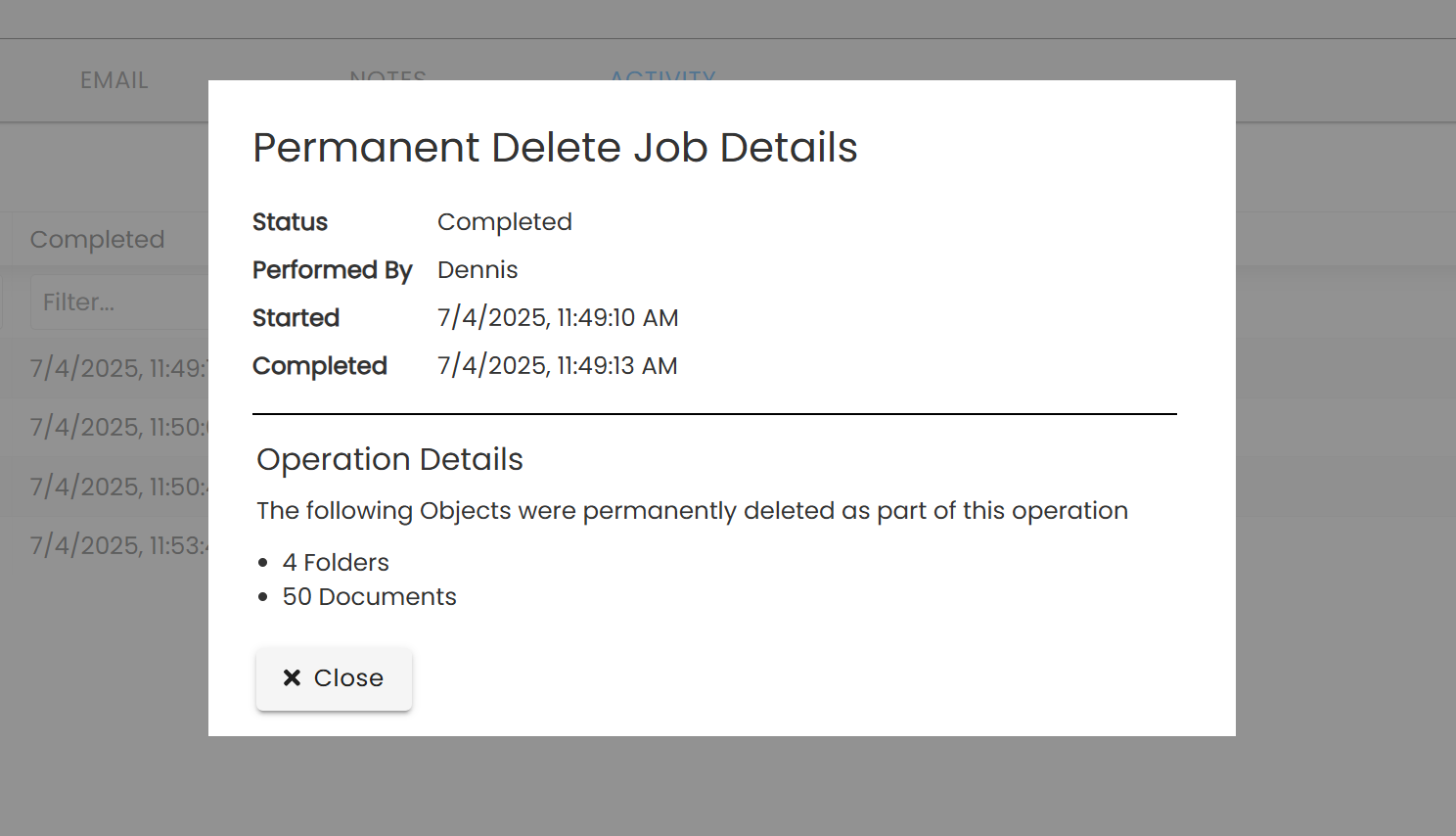
No List of Deleted Objects
LexWorkplace records the count/quantity of each type of object that was permanently deleted as part of a given operation (eg: X Documents, Y Folders, Z Emails) but does not maintain a list of each document that was deleted (name, ID) in the permanent delete activity log.