Applies To
LexWorkplace Starter, Core, Advanced
Version Management Overview
LexWorkplace allows firms to use one of two different forms of Version Management: Automatic and Manual.
(Manual Versioning was added as a new capability in July of 2026.)
By default, LexWorkplace creates a new Document Version every time you save a document — this is called Automatic Versioning. Some firms, particularly those migrating from other DMS products, prefer to only create a new version when they explicitly ask for one. For these firms, LexWorkplace offers Manual Versioning, a firm-wide setting that changes how — and when — new Document Versions are created.
This article explains how Manual Versioning works, how to turn it on, and how to create new versions once it's enabled.
Automatic vs. Manual Versioning
Automatic Versioning (Default) | Manual Versioning | |
|---|---|---|
New version created... | Every time the document is saved | Only when a user asks for one |
Version numbers look like | 1, 2, 3, 4... | 1.0, 1.1, 1.2, 2.0... |
Every save is still recorded | Yes (as a new Version) | Yes (as a Save, see below) |
Automatic Versioning
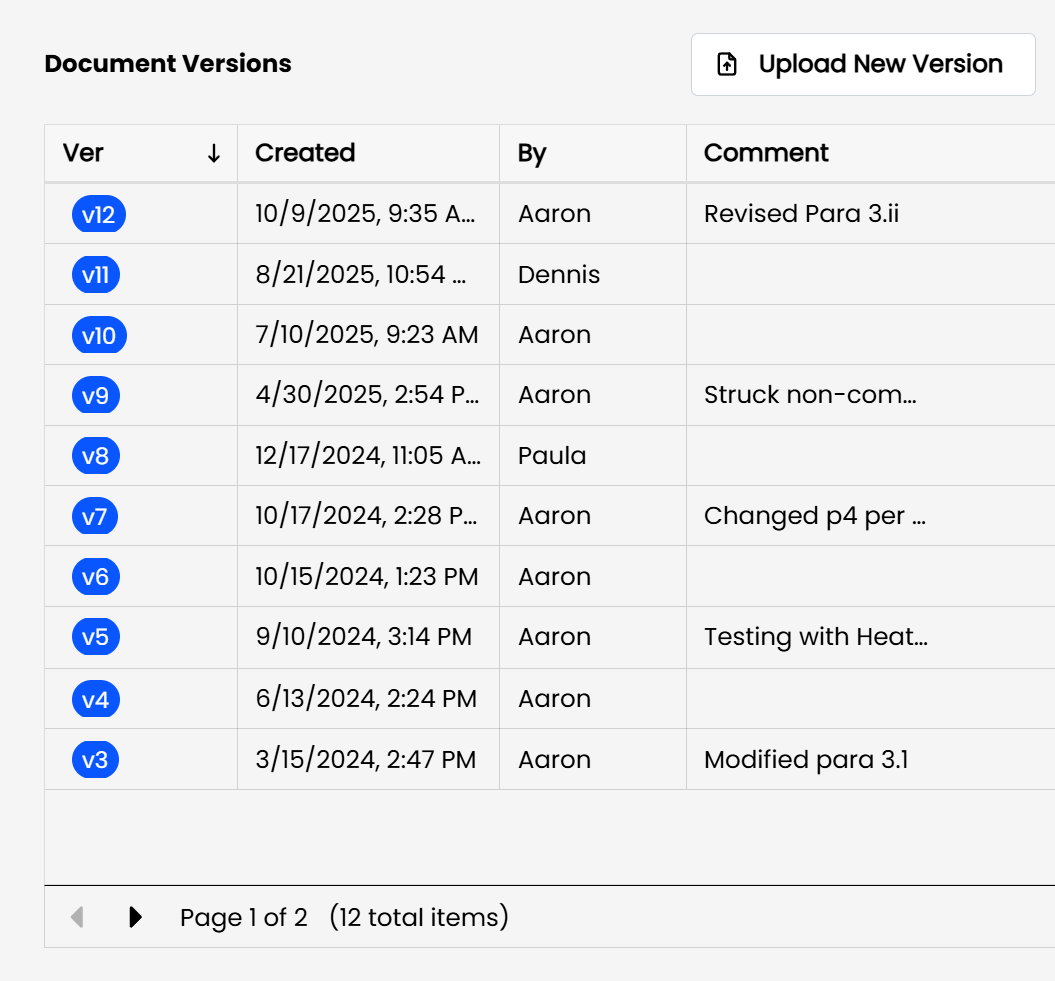
Automatic Versioning is the default behavior in LexWorkplace and requires no setup. Every time you save a document — whether from Word, Excel, or PowerPoint via the Office Add-in, or by uploading a new file to LexWorkplace — a new, sequentially numbered Document Version (1, 2, 3, and so on) is created automatically.
Each version is a complete, standalone copy of the document at that point in time, and any version can be opened, downloaded, restored, or compared against another from the Versions table on the Document Properties page. This gives every document a complete, edit-by-edit history without any extra clicks — the tradeoff some firms run into is that frequent small saves (spacing out a paragraph, fixing a typo) can add up to a long version history.
Turning On Manual Versioning
Manual Versioning is a firm-wide setting — it applies to every user and every document in your firm, and can only be changed by a Firm Admin.
Go to Settings > Document Management > Version Control.
Under Version Control, choose Manual from the dropdown (Automatic is the default).
Click Apply.
Caution
Changing this setting affects Document Versioning for your entire firm, for all users and all documents. You'll be asked to confirm before the change takes effect.
How Manual Versioning Works
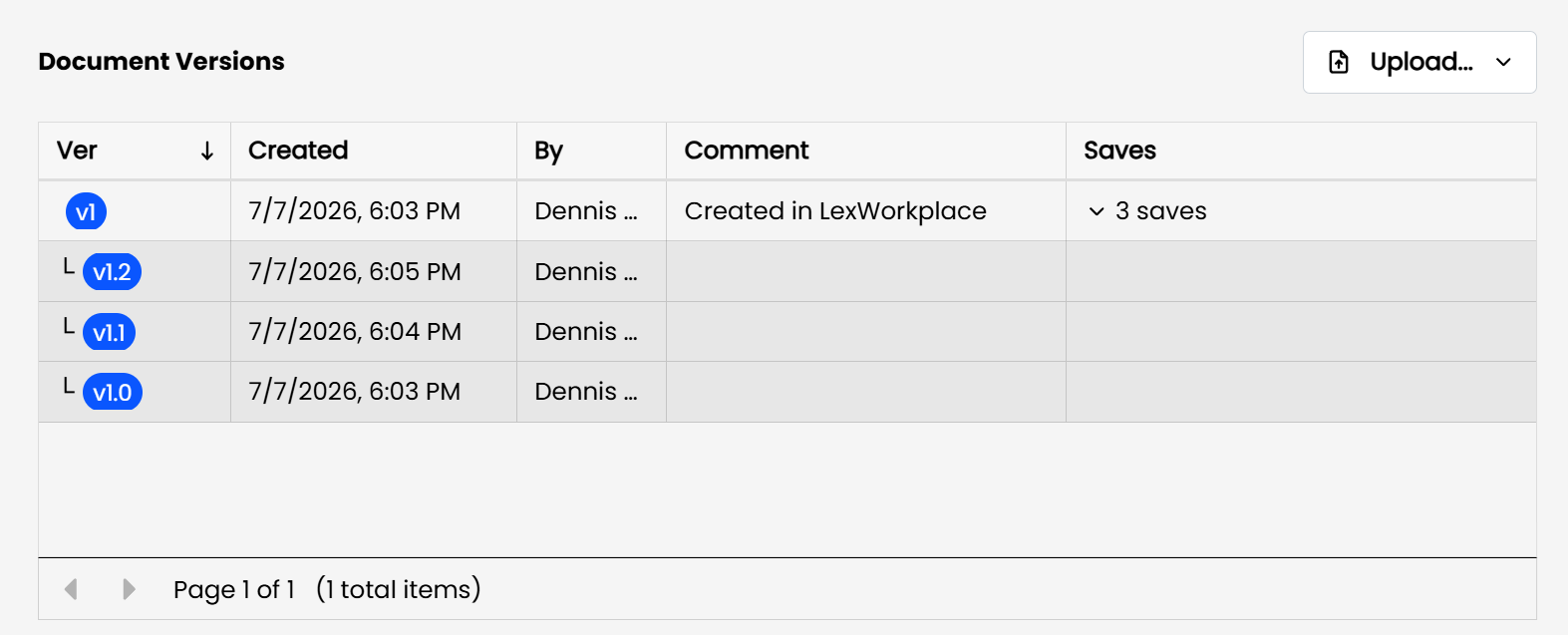
Under Manual Versioning, each Document Version has two numbers, separated by a decimal: the Version number and the Save number. For example, a document at 2.5 is on Version 2, Save 5.
Here's how it plays out as you work on a document:
You upload or create a new document. It becomes Version 1.0.
You open it, make edits, and save. It becomes 1.1.
You save again. It becomes 1.2, then 1.3, and so on with each save.
When you're ready to formally create a new version, click Save as New Version (see below). The document becomes Version 2.0, and the save counter resets.
Each save simply overwrites the current version-in-progress — so if you save a document five times, you're still on the same version, just a later save number (for example, 2.0 → 2.5). Nothing is lost: every one of those saves is still stored in LexWorkplace, they just aren't promoted to a new, named version unless you say so.
The individual saves are tucked away (collapsed) under its Version by default, to keep Version history clear, and to reduce visual clutter. To see all Saves under a particular Version, click ‘N Saves’ in the rightmost column.
Creating a New Version
You can create a new version in three places: from the Office Add-in, from a document's 3-dot menu, or from the Document Properties page.
Method 1: Office Add-in (Word/Excel)
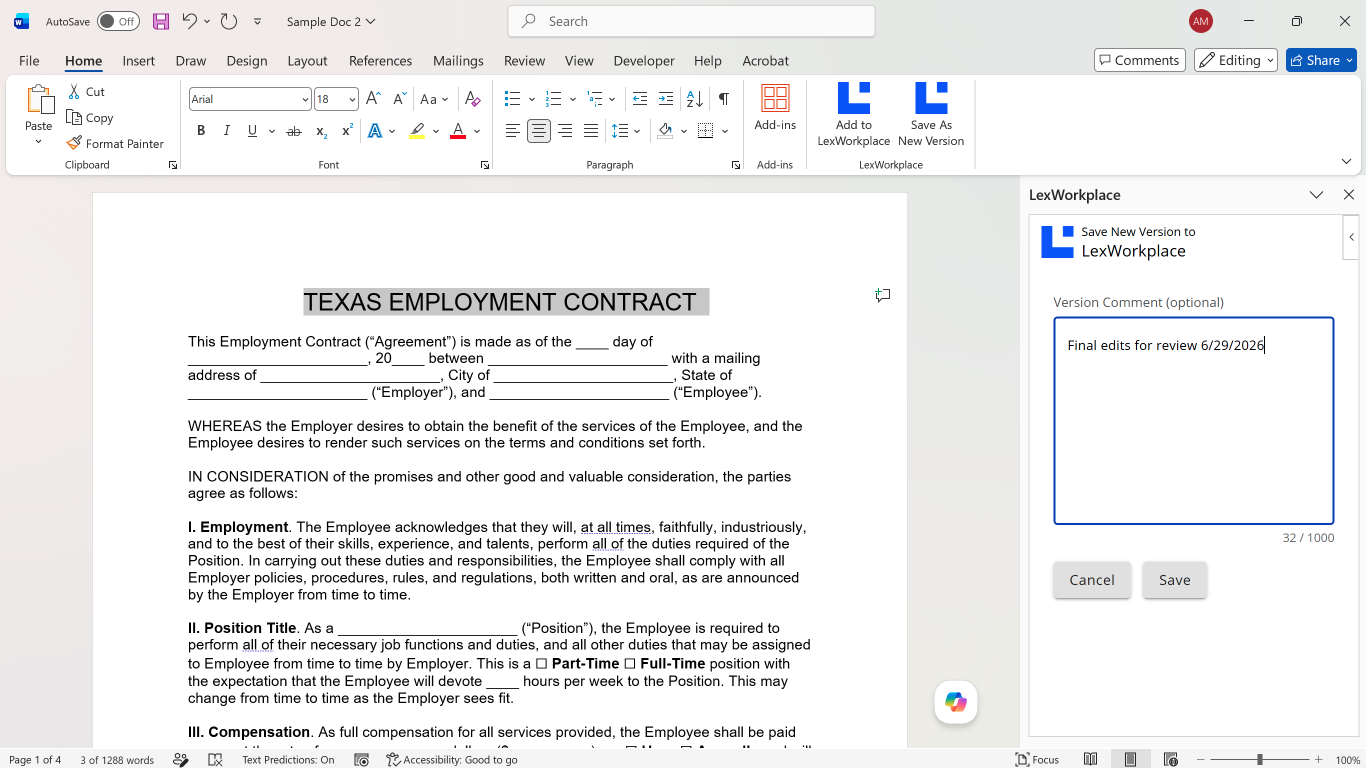
A Save as New Version button is available in the LexWorkplace group of the Word/Excel ribbon.
With the document open, click Save as New Version in the ribbon.
Optionally, add a Version Comment describing the change.
Click Save as New Version to confirm.
The document is saved as the next version (e.g., 2.0, 3.0), and you can continue editing.
Tip
The Save as New Version button also appears in Word/Excel for firms using Automatic Versioning — it's a convenient way to add a Version Comment when you save.
Method 2: Document 3-Dot Menu
Hover over the document in a Matter or in Firm Documents.
Click the three-dot menu.
Under Document Actions, click Create New Version.
Method 3: Document Properties Page
Open the document's Properties page.
Just above the Versions table, click Create New Version.
The new version appears in the Versions table. From here, you can also use Upload as New Save or Upload as New Version if you're uploading a file from your computer rather than editing in place.
Viewing Versions and Saves
When Manual Versioning is on, the Versions table on a document's Properties page shows only major versions (1.0, 2.0, 3.0, etc.) by default, to keep things uncluttered.
To see every individual save:
Open the document's Properties page.
Toggle on Show individual saves (n.1, n.2, etc.).
Saves will now appear nested under each major version. This preference is remembered per-user and applies consistently across documents.
Note
A document that has ever been saved under Manual Versioning will always display the Saves column on its Properties page — even if your firm later switches back to Automatic Versioning.
Switching Between Automatic and Manual Versioning
Firms can switch between Automatic and Manual Versioning at any time from Settings > Document Management > Version Control. Existing documents and versions aren't affected by the switch — LexWorkplace simply changes how new saves are handled going forward.
Promoting a Previous Version or Save
Any past major version — or even an individual Save within it — can be promoted to become the new, current version. Promoting copies that file and makes it the new highest version, without disturbing anything in between.
This is useful if you've made a new version but decide you actually want to go back to (and continue from) an earlier point in the document's history.
Deleting Versions and Saves
Manual Versioning follows the same general permissions and safeguards as Automatic Versioning, with a few additional rules for Saves:
Deleting a major version (e.g., Version 4) deletes all of its Saves (4.0, 4.1, 4.2, etc.). You'll see a confirmation prompt before this happens.
You can delete an individual Save (e.g., just 3.2), but you can't delete every Save under a version — at least one must remain.
The current (most recent) major version can't be deleted.
As with Automatic Versioning, you can't delete every version of a document — at least one must always remain.
Supported Applications
Manual Versioning's Save as New Version button is available in:
Microsoft Word (Mac and Windows)
Microsoft Excel (Mac and Windows)
A Note for Mac Users
On the Mac Office Add-in, clicking Save as New Version will always prompt a dialog asking you to allow opening the LexWorkplace Launcher. Unlike Windows, there's no option to "remember" this choice, so you'll see this prompt each time.