Applies To
LexWorkplace Starter, Core, Advanced
Introduction to Smart Search
LexWorkplace has had fast and flexible search since its inception. New in December 2025 is a reworked and improved search (and more) experience that we call Smart Search.
All of the search functionality you’ve become accustomed to in LexWorkplace still works as it always has; Smart Search provides additional functionality.
Related
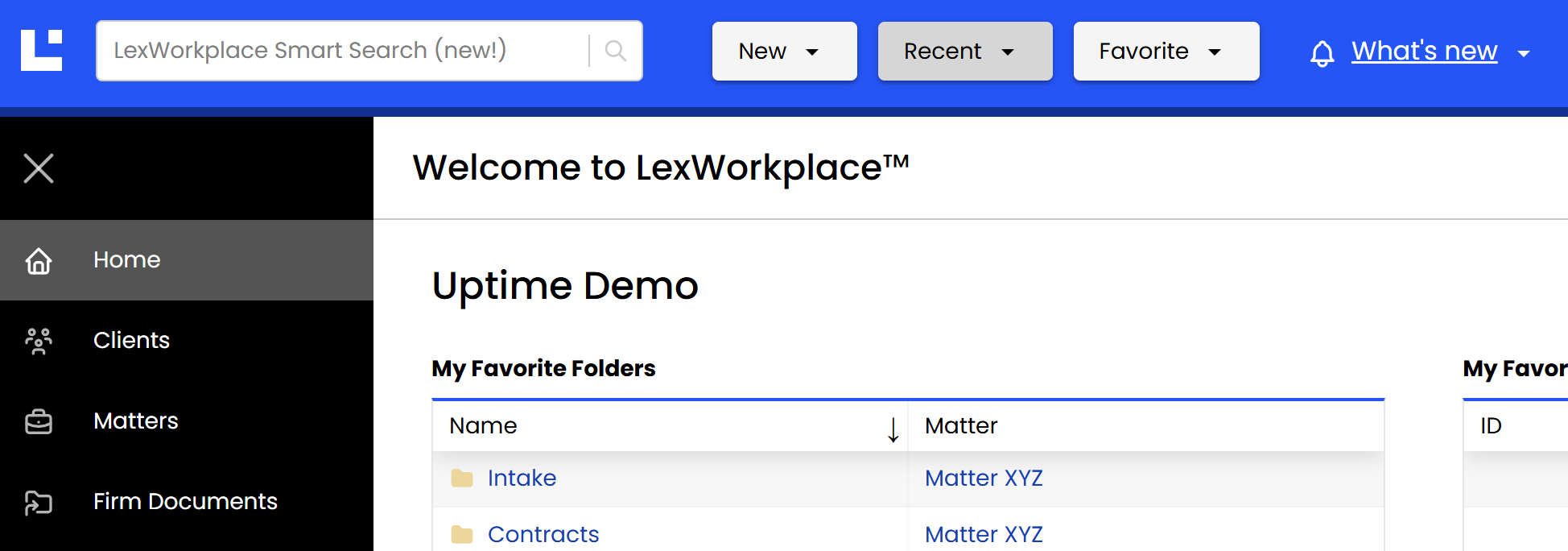
The new Smart Search gives users the ability to quickly find clients, matters, and documents, as well as the ability to create new items and even jump to specific settings, all from one central, universal search bar.
How to Use Smart Search
Smart Search puts many functions of LexWorkplace right at your fingertips. Now users can perform a variety of actions and operations right from the Smart Search bar in the top-left of LexWorkplace.
Here’s how it works.
Simply start typing anything in the Smart Search bar, and LexWorkplace will suggest a number of related items (that you may be searching for) and operations (that you may wish to conduct).
From the Smart Search bar, users can:
User Can Type… | LexWorkplace Will… |
|---|---|
The Name or ID of a Document | Offer to open any matching Documents |
Name of a Client | Offer to open any matching Client |
Name of a Matter | Offer to open any matching Matters |
Anything | Offer to create a new Document, Client, or Matter of that name (the user’s input) |
Anything | Offer to jump to any LexWorkplace setting that matches the user’s input |
In the following example, we type “xyz” into the Smart Search bar. There are a number of objects with the characters ‘xyz’ in them, so LexWorkplace presents the user with a number of options.
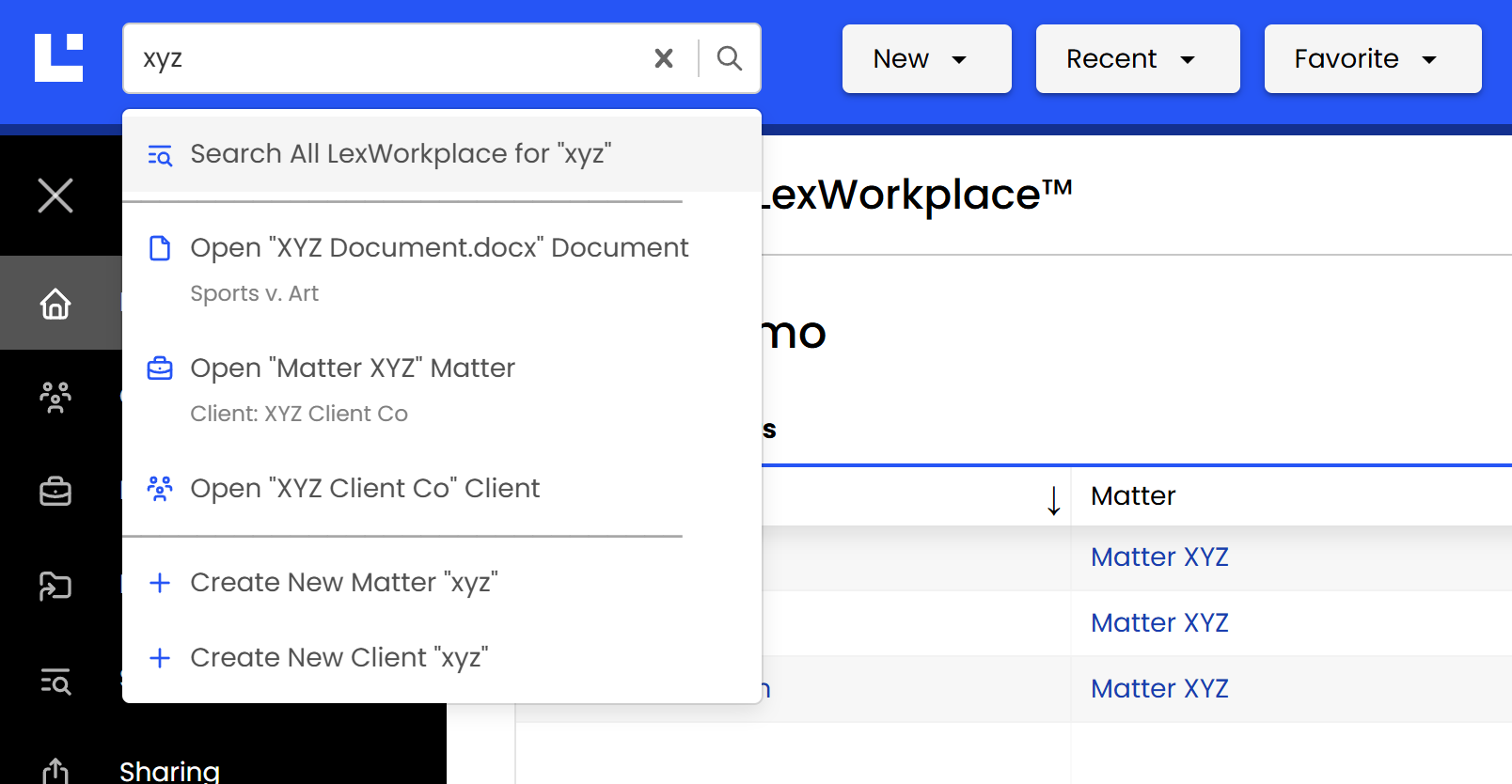
In this example, there was:
A Document named “XYZ Document,” so LexWorkplace offers to open that Document
A Matter named “Matter XYZ”, so LexWorkplace offers to open that Matter
A Client named “XYZ Client Co,” so LexWorkplace offers to open that Client
In this example, LexWorkplace also offers to create a new Matter or Client of that name (the user’s input)
Searching Clients + Matters
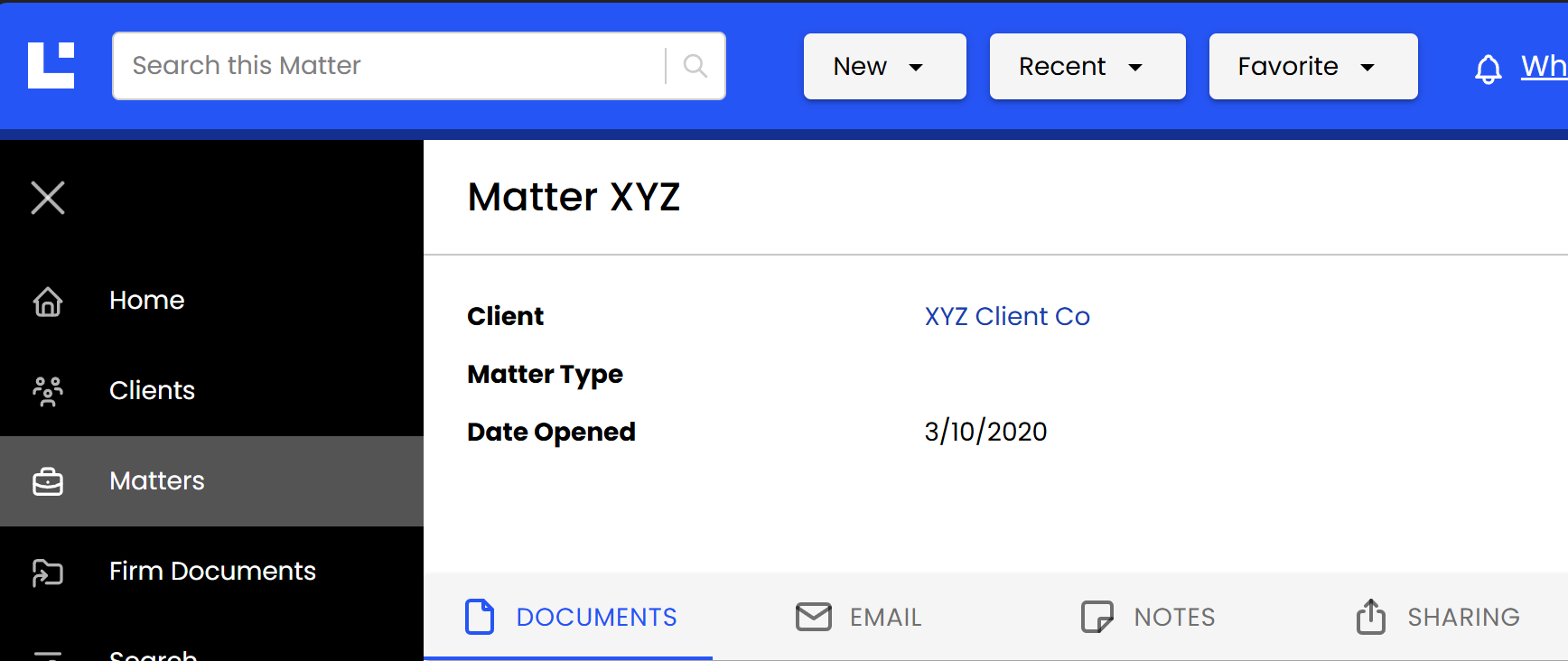
In addition, when inside a Client or Matter, users will (still) have the ability to “Search this Matter” or to search all Matters for a Client, just as they always have.
Searching Settings
As described earlier, users can also search for and jump right to a particular Setting (in the Settings page) from Smart Search.
In the following example, we type ‘tags’ into the Smart Search bar, and LexWorkplace offers several suggested Settings that we might be looking for.
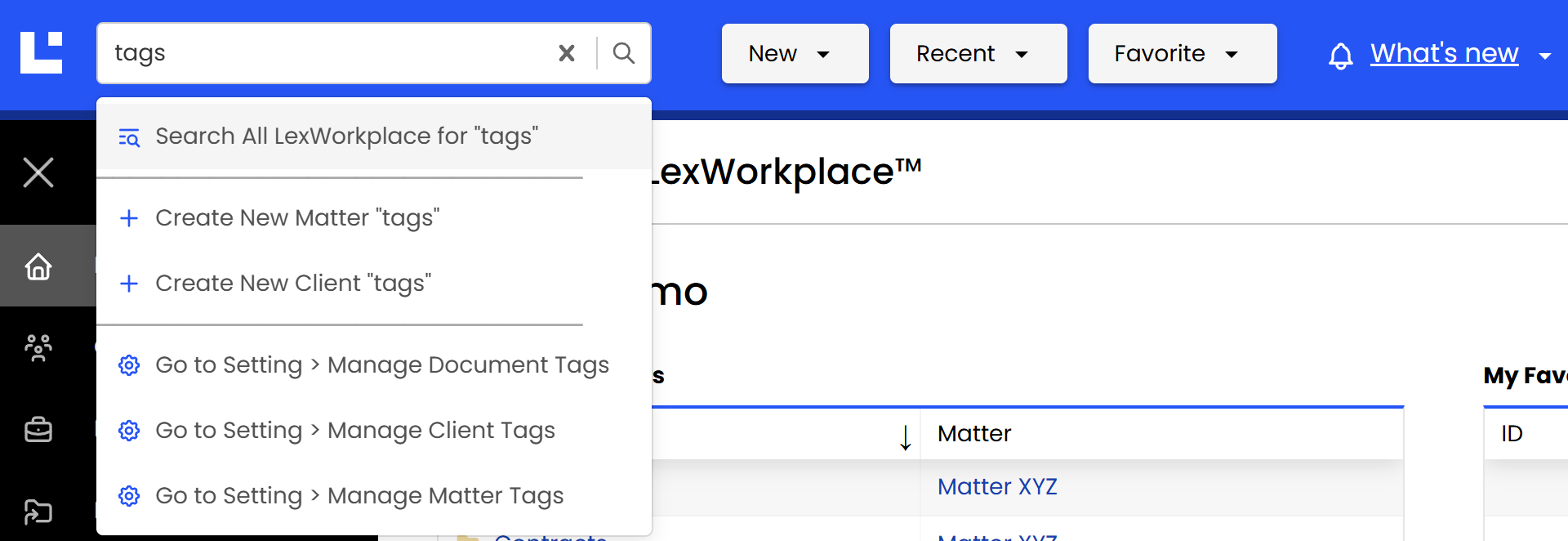
Here, LexWorkplace deduces that you may be looking for Document Tags, Client Tags, or Matter Tags (settings) and offers each to the user.
In addition, like before, Smart Search also offers the ability to create new items named “Tags.”