Applies To
LexWorkplace Starter, Core, Advanced
Introduction to Metadata/Profiling
Metadata
“Metadata” is any data about a given document but that is not in the document. Document Types, Tags, and Status are all forms of metadata in LexWorkplace.
It’s important to note that only users with access to a document can see or edit metadata. Moreover, external parties will not see Metadata for documents you send, as metadata is stored in the LexWorkplace database (not the document itself).
Profiling
Applying metadata to a document, such as giving a document a Type of “Contract,” is called profiling the document. You can profile (add/edit metadata fields) a document at any time.
By default, LexWorkplace does not require you to Profile Documents as you create new Documents and save them to a Matter or Firm Documents. Firm Administrators can, however, require that Documents be Profiled when saving to LexWorkplace, and can tailor the profiling requirements in LexWorkplace to align to your firm’s policies or practices.
Here’s how it works.
Setting Up Mandatory Profiling
Mandatory Profiling exists via a combination of firm-wide document settings/requirements that Firm Administrators can define in LexWorkplace Settings.
Pro Tip
We recommend thoughtfully considering your firm’s Document Profiling policies first, then applying those policies in LexWorkplace. Profiling requirements, including required fields, are defined at the firm level and apply to all users.
Mandatory Profiling settings will apply to all Matters (but not Firm Documents).
Basic Settings
To configure Mandatory Profiling, navigate to Settings > Document Management > Mandatory Profiling.
By default, all Mandatory Profiling settings are turned off.
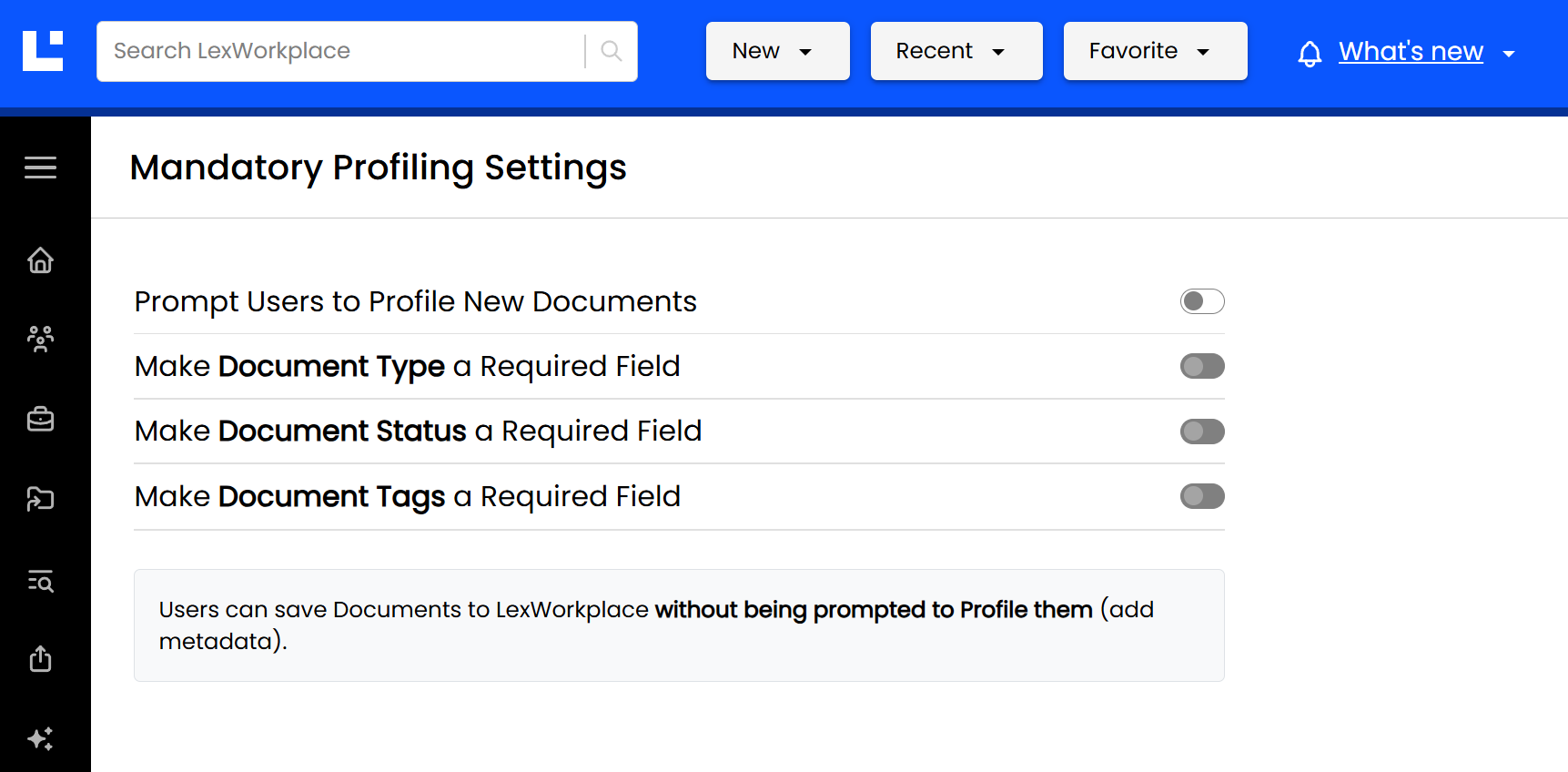
Firm Administrators can enable each setting to fine-tune a Document Profiling configuration that aligns to your firm’s policies.
Setting | If Enabled |
|---|---|
Prompt Users to Profile New Documents | Users will be prompted to Profile each new Document saved to LexWorkplace (even if no fields are defined as required)* |
Make Document Type a Required Field | Users will be required to populate the Document Type property when/before saving to LexWorkplace. |
Make Document Status a Required Field | Users will be required to populate the Document Status property when/before saving to LexWorkplace. |
Make Document Tags a Required Field | Users will be required to populate at least one Document Tag when/before saving to LexWorkplace. |
*Pro Tip
You can enable ‘Prompt Users to Profile New Documents’ without making any of the Document Property fields required. This is useful if you wish to gently nudge, but not require your firm’s team-members to profile new Documents when saving to LexWorkplace.
File Type Exclusions
Firm Administrators can also exclude certain file types (such as images, or .XLSX files) from Profiling requirements. When a specific file type is excluded, users will not be prompted or required to Profile documents of that type, regardless of other Profiling settings.
In the example below, we have excluded video files and Excel spreadsheets from Profiling Requirements.
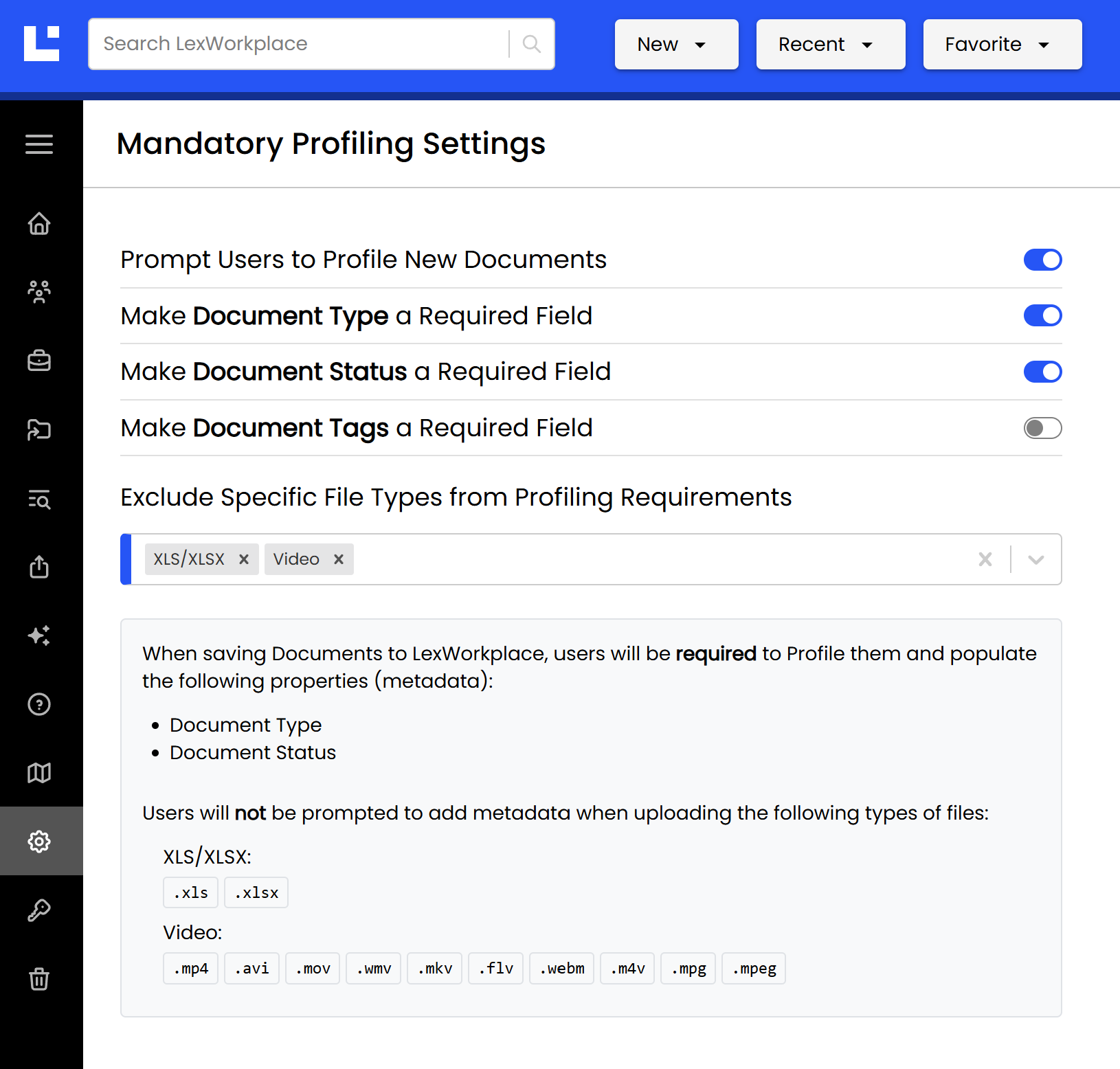
LexWorkplace provides a natural-language summary of the current Profiling settings and ramifications at the bottom of this page.
User Impact
Once ‘Prompt Users to Profile New Documents’ is enabled, users will receive the following prompt when saving new Document to anywhere in LexWorkplace, indicating all required Property fields.
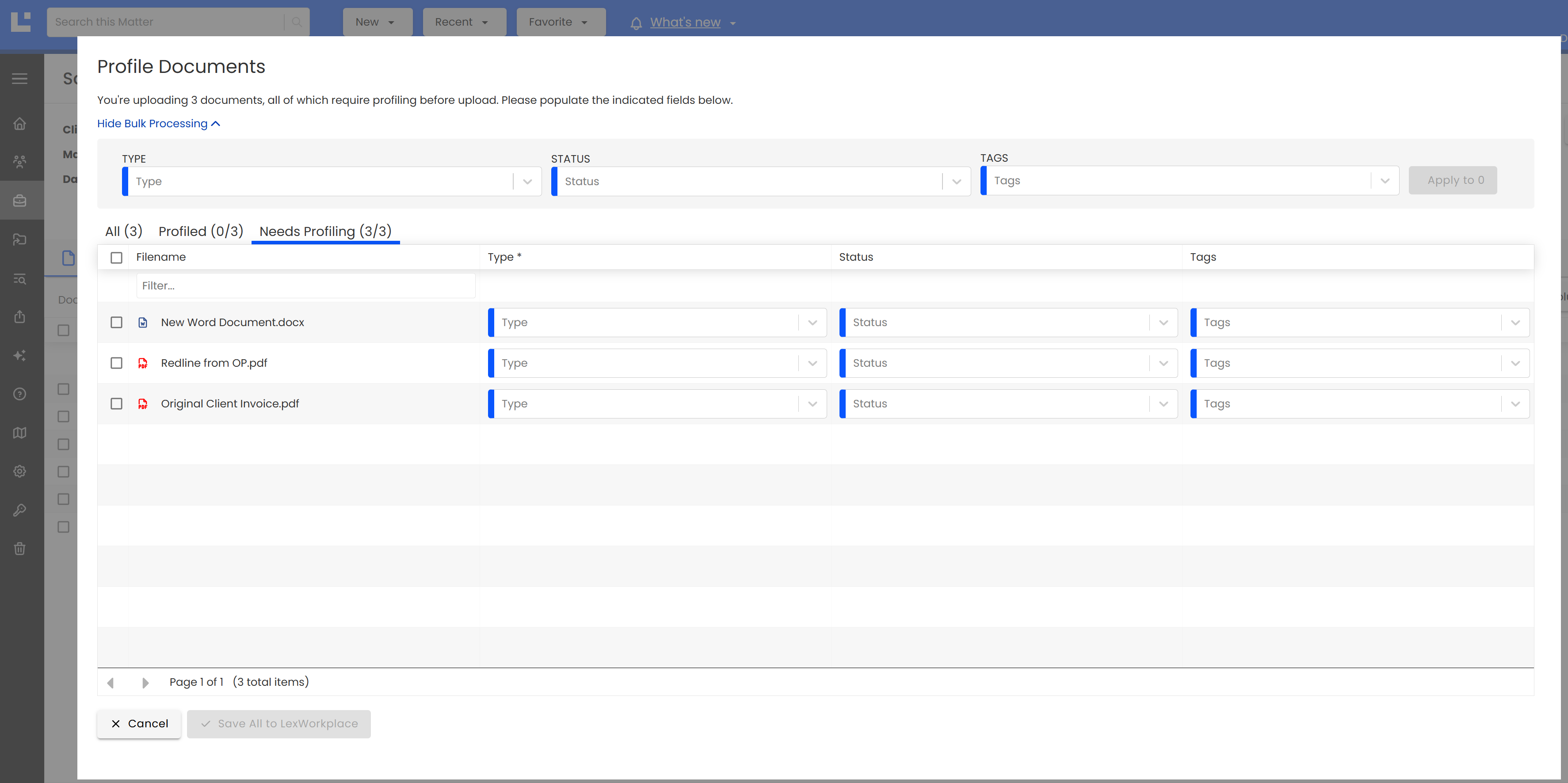
In the example above, the Firm Administrator has enabled ‘Prompt Users to Profile New Documents,’ and has made (only) the Document Type field required.
The user who is uploading these documents must provide at least a Document Type for each document, and can also optionally populate the Status and Tags fields.
The user can apply Properties to each document individually in the workflow/table presented.
Alternatively, the user can bulk-apply properties using the Bulk Processing tool at the top of the page.
Document Profile Workflow
When a user saves one or multiple new Documents To LexWorkplace, they’ll be presented with the Profile Documents page/workflow (shown above).
This screen has three tabs to help users keep track of what they’ve processed (Profiled) and what yet needs to be Profiled.
Tab Name | Description |
|---|---|
Needs Profiling | This Document has one or more Property fields that must be populated to proceed |
Profiled | This Document has been Profiled and meets Profiling requirements |
All | All Documents (both those that Need Profiling and that have been Profiled) |
Bulk Processing
Profiling a large volume of Documents at once (such as uploading a folder with many documents inside) can be tedious and time consuming. If many of the documents you’re uploading will have the same Properties, you can use the Bulk Processing tool to batch-apply Document Properties.
To do this:
Click ‘Show Bulk Processing’ at the top of the Profile Documents screen.
Then set the Document Type, Status and/or Tags to what you’d like to bulk-apply. (In the example below, we’re setting the Type to Contract and the Status to Draft.)
Click the checkbox next to all Documents that you’d like to apply these Properties to. (In the example below, we’re choosing to apply these Properties to two of the three documents.)
Click ‘Apply to N’ (where N is the number of Document’s you’ve selected, this is an opportunity to double-check that you’ve selected the correct documents).
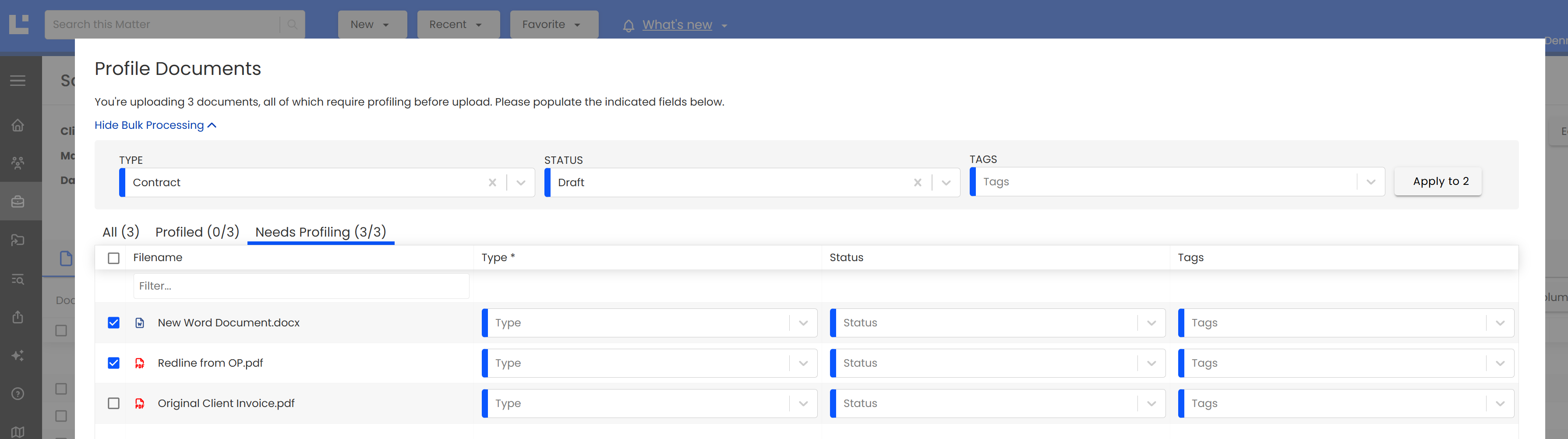
When done, the selected Documents will move to the ‘Profiled’ tab of this workflow.
Enforcement
Document Profiling requirements are enforced in all methods that users can add Documents to LexWorkplace, including drag-and-drop, upload button and via LexWorkplace for Office (the add-ins for Word, Excel and PowerPoint).
Firm Documents
The Firm Documents area is excluded from Profiling Requirements.